richboy2307
Staff
-
Joined
-
Last visited
Everything posted by richboy2307
-
@wolfko That is precisely what the comment above was referring to, and it is indeed a sim limitation. Please re-read the comment above to understand. The "grass" around the roads is part of the sim's road/vector data overlay, which isn't taking the snowfall into account. The sim currently does not allow custom scenery to overwrite this sim vector data or layer above it.
-
Hi, This is a sim issue with loading nodes for pilots to spawn at. We have little control beyond assigning the node/spawn point for these models, the rest is handled by the sim. This would be why they're there sometimes, not the others etc. Thanks!
-
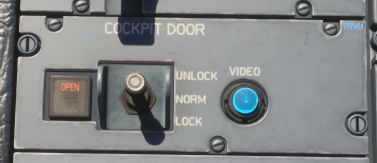
It is the control for the air vent above it. Increase/decrease the airflow by moving towards +/- respectively.
-
Follow this guide to change variants. Please note whilst streaming the addon, it may take some time for the download to complete with the necessary files. Or you can manually download the whole aircraft via My Library to grab it all at once. Thanks!
-
Thanks, reported.
-
If you mean the window shades in the cabin, no they're not operable for performance reasons. If you mean "plugging" the windows on the outside, thats done via the livery textures by painting over the liveries. There is no dynamic setting to plug them. Thanks!
-
Thanks reported.
-
Hi @NickMunro It is definitely working, though there is a difference in the degree of change in A340 vs the A350, primarily for performance reasons. Dynamic Weathering/Dirt requires nodes, and each node comes at the cost of performance. In the current implementation, all efforts have been made to keep nodes to a bare minimum, as such alot more of the dirt/weathering is part of the livery/base textures as opposed to "dynamic". One place where you can observe this in effect currently for example is on the seals for avionics compartment (and other maintenance panels on the belly): (Click to enlarge image) But your feedback is noted and relayed to our Art team for consideration. Thanks!

-
Hey @Benutzer Thank you for your detailed report and information provided. Unfortunately we've not been able to reproduce your WASM crash as yet across various test systems, with or without your autosave. Here is a video from one of the attempts: 2025-10-14 15-28-12.mp4 This highlights the difficulty in replicating these crashes, so if you notice anything we can do differently in trying to reproduce, or better yet can provide a similar video of your own with the console window open, we can attempt again to hopefully trigger it and catch it with the additional sim debugging tools attached! Thanks for your cooperation.
-
@sdflyer Please make a seperate post and with all the appropriate information as per this guide pls:
-
Hey, Thanks for your report. We're working on some of the reported items, but there are also just few things we wanted to clarify that are non-actionable, Checked, it is coded as a window between the intercept alt (3000ft) and 1460ft in the Sim Default navdata unfortunately. Under Navigraph navdata this waypoint doesn't even exist (it goes from DESIM direct to EDDV09L with a 3 deg glidepath). Not much we can do about it, but yes it should not have shown as a 3000 Magenta ALT CSTR on the F-PLN page in this instance which is what team is working on. Team is working on this. For this particular approach, it is just an ILS-LOC, not an ILS-LOC-DME so that is correct behaviour in this instance. The DME information for this approach is to be received via VOR1/2 tuned to the HAD (113.95). That is dependent on the scenery as that is where the information is pulled from. If the scenery has not assigned ILS Freq/station to the runway, then it won't get pulled with the procedures for it. The plane is not in go-around phase, hence no go around indications on the PERF or anywhere else. For the LNAV however, this is an "artefact" of sim-default navdata, in the way that its been re-done now such that the Go-Around waypoints start from right after the MAPt in the database, rather than *after* the runway waypoint. As the leg from MAPt to runway gets sequenced, its already in the "go around legs" segment and hence its turned green. The triggers are different for LNAV vs the rest of the go around logic, and there is no easy way to get around this for sim default navdata without also introducing other complications with sequencing. It is on the docket but unlikely something that can receive a quick turnaround. Ideally though the sim would revert to the old way of defining go-around segment legs. Yes it is. If you're having issues, please provide video reference of observed behaviour in-sim for team's perusal. Thanks!
-
Hey @Asher Yearwood Thanks for the additional information. See this video - it is at a higher altitude, but also tried at alt/position where you stated and still could not repro: 2025-10-08 17-44-39.mp4 I have also attached an autosave (EGPH_DES.bin) that we loaded into for testing, this was saved whilst trying to re-create your flight. See if you can reproduce the issue on this autosave maybe? You can copy the autosave into the paths below, then load it via the EFB Autosave menu. Would be helpful if you can also create a video recording like the one above with the console window open that will help us see when the WASM crash triggers. We want to get to the bottom of these WASM crashes but step one is being able to reproduce them. So your help is appreciated. Thanks! EGPH_DES.bin
-
Hi @Asher Yearwood We have tried our end to reproduce your crash but have not been successful. Can you please provide the following additional info Are you able to reproduce this crash? Either this one specifically or in any other situation Which waypoint did you try to insert a DIR TO - RADIAL-IN towards? What RADIAL-IN value did you insert? Where approximate you were (closest waypoint) when you initiated this Ideally, please provide an autosave file closest to your time of crash so we can load in to the same scenario and try to reproduce you crash. File paths for the autosave can be found in the guide here: Thanks!
-
Hi, Not been able to reproduce this issue on our end on SU3. Can you confirm if you're on MSFS SU4 Beta? We've seen a few other reports on the discord that seem indicative of an SU4 Beta specific issue introduced with their latest sim update. Thanks!
-
Hi @MediocreGorilla Thanks for your report. This is a known byproduct of the the compression and package delivery method used for marketplace streaming. We're working with Microsoft on resolution. Thanks for your patience meanwhile!
-
Thanks for reporting, logged for the team.
-
Hi, The included error messages sadly are not indicative of a WASM crash. All the included message means is that it was either unable to create an autosave file in the directory at this time, or that it couldn't access the directory to delete an existing autosave file. These kind of error messages are common place and not a known cause of any WASM crashes. That being said, in order to address your experienced issue better, we'll need more information - reproduction steps/conditions, screenshots/video of your sim at the time of crash or whenever you noticed, as well as recent autosave files if any before the crash. Without this information, it is impossible to ascertain what may have happened in your instance. Thanks for your patience and understanding.
-
Usually received messages will be under ATSU > ATC MENU or AOC MENU accordingly. If you have any specific examples/instances of how to reproduce these "errant" messages please let us know so we can investigate further. Do you mean D-ATIS under ATC MENU > ATIS? That is coming in the next update. It didn't make the cut in QA Testing for the release version. Features such as CMS, ETP, ETT and Time markers are all work in progress items that should be available in a future update. These didn't make the cut in QA Testing for the release version. Some more specific reference/examples, ideally in the form of video showing us what you're noticing would be helpful. Additionally, please include what your expected result is. Can't say I've noticed any issues personally in this regard in testing but I am curious as to what you're experiencing. That is standard behaviour for the simulated FMS. If you want to make changes after engine start, you do so via the FUEL PRED page. DSC-22_10-40-10 P 12/16 FCOM extract: "Feels" is something quite subjective, and will vary between each individual's setup/hardware. Our aircraft are best used with linear (1:1) sensitivity settings for your axis, with deadzones as necessary for your hardware. While there may be room for minor adjustments, we stand by our simulated flight dynamics behaviour - which has been tested by type-rated pilots on consumer level hardware such as Winwing, Thrustmaster as well as more elaborate setups. The experience will scale up with better hardware naturally. We are also going to remain primarily data-driven in our approach to such tweaks so scenario specific example and reference for expected results are required for such feedback to be actionable. Not currently planned however your suggestion is noted. Thanks!

-
This is by design for stability and performance reasons, as all instrumentation is being drawn in a single layer rather than its own separate gauge (as previous planes).
-
Hey, Yes these appears to be an issue related to streaming/encryption that can sometimes make the file unreadable for GSX. If you are affected, please manually install the Passenger or Preighter GSX Profile as explained here: Thanks!
-
The A340 Airliner’s visual effects have been designed to immerse the user fully. Engine heat blur, exhaust distortion, and realistic condensation effects bring the aircraft to life, while cold start smoke, dynamic over-wing vortices, and vapor trails react to environmental conditions. Combined with the highly detailed exterior and interior modelling, these effects elevate the aircraft beyond visual fidelity to deliver a fully engaging simulation. Although these effects have been optimized to reduce performance impact, you also have the option to manually disable them entirely via the FX Performance Mode. FX Performance Mode You can enable FX Performance Mode via the EFB Aircraft Settings page. (Click to enlarge image)
-
The iniBuilds A340 Airliner includes GSX profiles for both Passenger and Preighter variants, which are bundled in the Marketplace streamed/downloaded package already. Typically, external profile downloads are unnecessary. However, if you encounter issues with GSX recognizing the aircraft type, you can download the profiles below as a backup. Preighter Profile Differences The Preighter profile has the following difference by comparison to the passenger variant Assigned as Cargo Type - No visual passenger boarding Catering is only conducted via R2 Door Installation Choose the Passenger or Preighter profile .zip folder Extract the inibuilds-a340 folder to %AppData%\Virtuali\Airplanes Uninstallation Delete the inibuilds-a340 folder from %AppData%\Virtuali\Airplanes iniBuilds A340 GSX Passenger.rar iniBuilds A340 GSX Preighter.rar
-
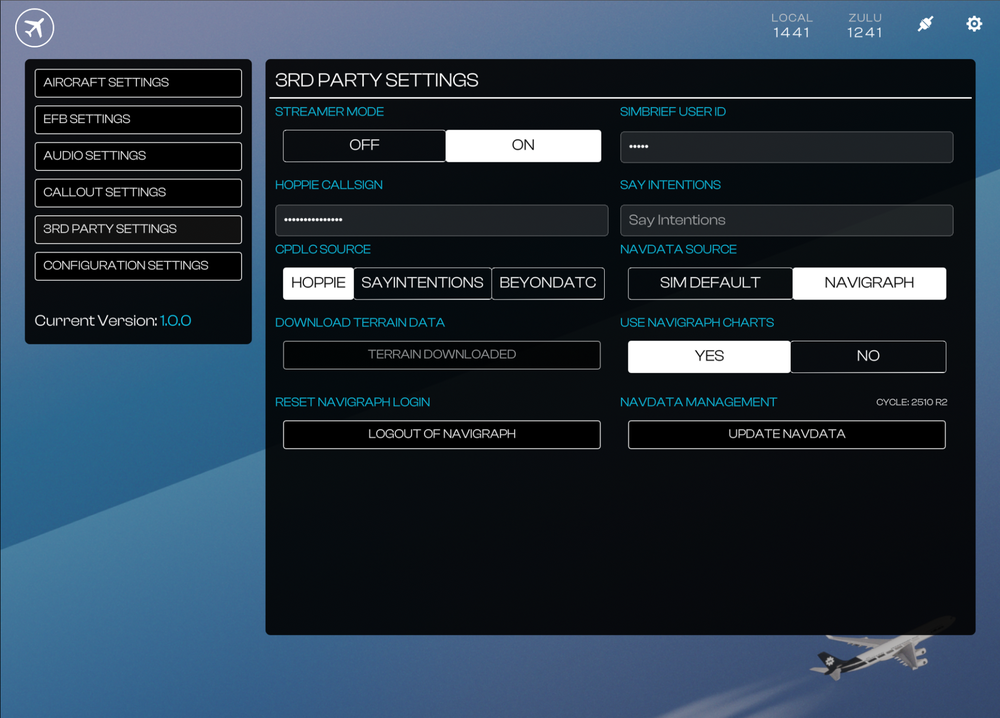
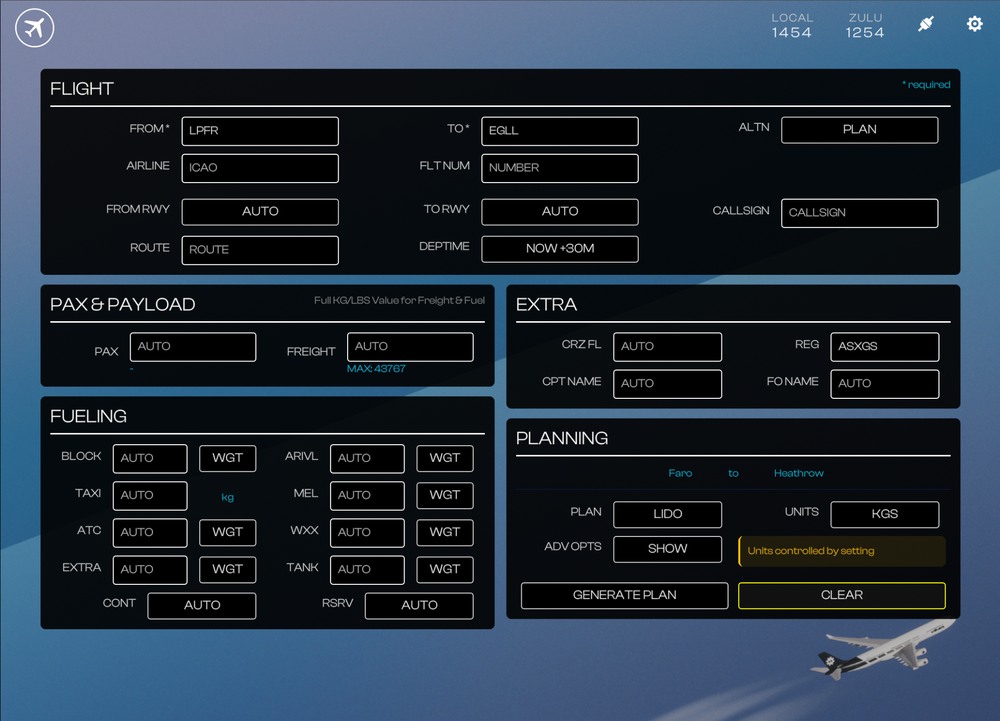
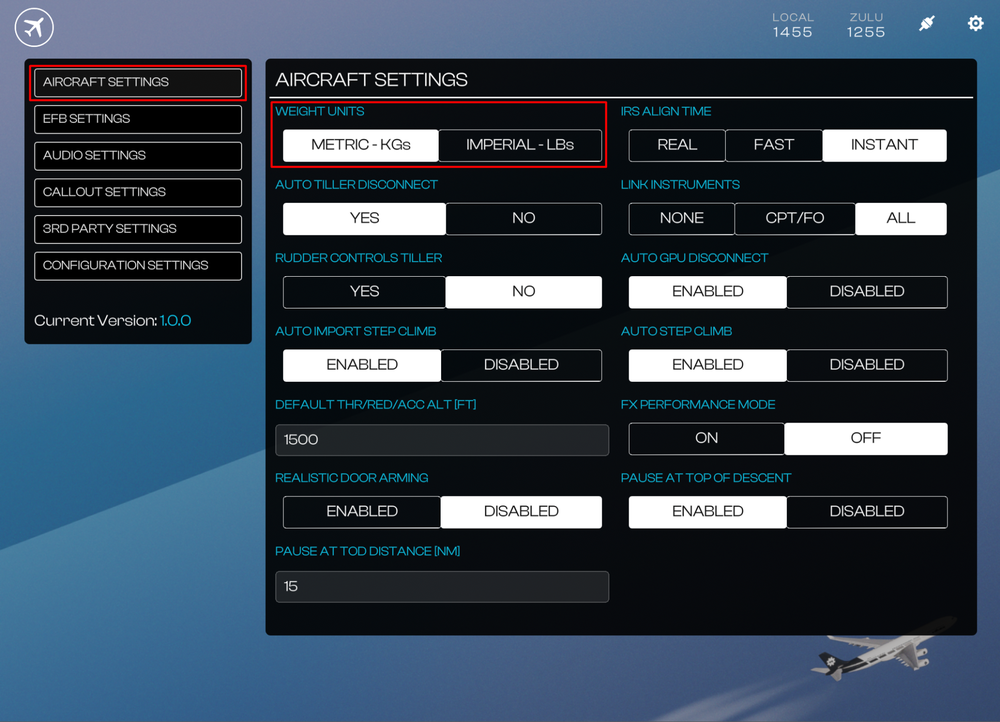
The iniBuilds A340 Airliner EFB allows you to plan your entire flight, from departure to arrival, right from the cockpit using the EFB Flight Planner page. Accessing the Flight Planner The new planner has its own dedicated page which can be found on the EFB Dispatch section. (Click to enlarge image) Creating a SimBrief Flightplan via the Planner In order to create your flight plan, only the following fields are mandatory FROM* - Input your Departure airport's 4-letter ICAO code here (e.g. LPFR) TO* - Input your Arrival airport's 4-letter ICAO code here (e.g. EGLL) Then, press the GENERATE PLAN button to create a SimBrief Flightplan using the default "AUTO" values. (Click to enlarge image) For additional customization, you can also tweak the below fields which are optional ALTN -Set your alternates plan here or input their ICAO codes manually. Default value is AUTO. AIRLINE - Input any 3-letter ICAO airline code (e.g. AFR) FLT NUM - Input any alpha-numeric flight numer (e.g. 25A) FROM RWY - Select your Departure airport's desired runway. Default value is AUTO. TO RWY - Select your Arrival airport's desired runway. Default value is AUTO. PAX - Input the number of desired passengers. Values exceeding the MAX will use MAX instead. Default value is AUTO. FREIGHT - Input the desired weight (KG/LBS) of cargo. Values exceeding the MAX will use MAX instead. Default value is AUTO. CRZ FL - Enter your desired Cruise altitude in 3-digit flight levels (e.g. 380 for 38,000ft). Default value is AUTO. REG - Enter your desired aircraft registration. CPT NAME - Input custom Captain's Name on the OFP. Default value is AUTO. FO NAME - Input custom First Officer's Name on the OFP. Default value is AUTO. PLAN - Choose the desired OFP format from the list that shows on screen. Default value is LIDO. FUELING section - Choose between WEIGHT or MIN units and enter the desired numeric value for that particular fuel section on your OFP. Default value is AUTO. To reset the page back to its default state, click the CLEAR button. (Click to enlarge image) To change the planning units between KG/LBS, change the Aircraft Weight Units from the EFB Aircraft Settings page. (Click to enlarge image) Using your New Flightplan - OFP Once you have successfully generated a flight plan, the EFB will automatically go to the OFP page and give you a 'PLAN GENERATED SUCCESSFULLY' notification at the top of the screen. That's it! Your new flightplan is now active on SimBrief, same as if you had generated via their Dispatcher Tool or Website. Now you may use this new plan on the MY FLIGHT, PAYLOAD & FUELING, TAKEOFF PERF or LANDING PERF pages of the EFB by Importing or syncing with Simbrief as usual. You may also request your new flightplan on the FMS via the INIT REQUEST* button on the INIT A Page.
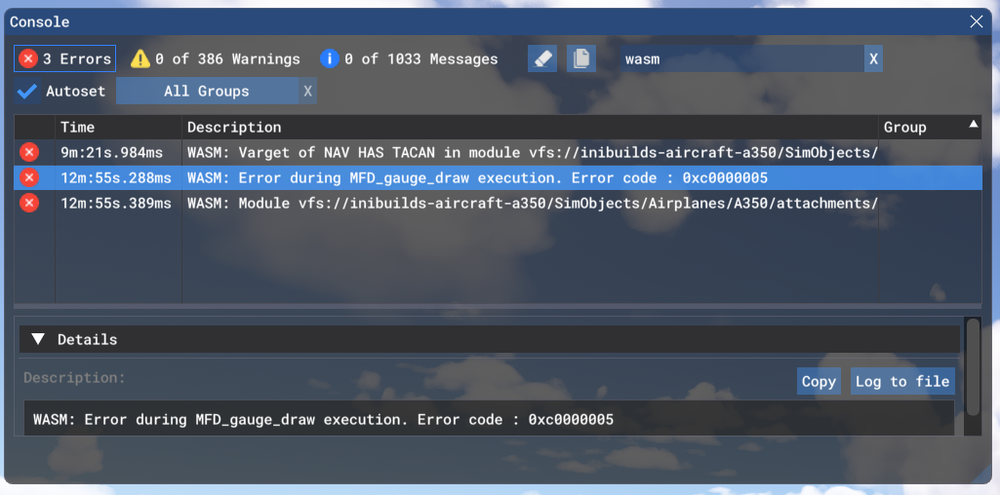
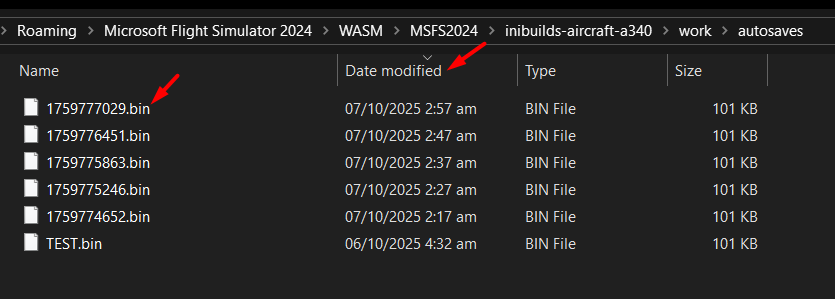
 What is WASM? The WebAssembly Module (WASM) is a container for running programmes written in other langauges (eg C/C++) that is then converted to native code ahead of time (as DLLs) during first launch (WASM Compilation). This helps improve performance for subsequent uses but causes longer load times on first launch. See for more info: This improves security of the sim and portability of projects across PC/Xbox. In case of issues, only the WASM crashes instead of the rest of the sim along side with it. This is why the sim and some functions may continue to work, however other systems and displays that use WASM on the aircraft become unresponsive or "freeze" in place. So what to do in case of WASM crash? Do not close the sim/restart flight immediately Verify the WASM error message Report the WASM error message with reproduction steps using the guide below. Verify WASM Crash in Sim Step 1. Enable Developer Mode (FS24) Settings > General > Advanced Options Step 2. Enable the Console by pressing "~" key on your keyboard or using the Dev Toolbar at the top of the screen Step 3. Filter the Console by ❌Error messages only by clicking on ⚠️Warning and ℹ️Messages to disable them (remove blue box border around them). Step 4. Type 'WASM' in the search box. Find the WASM Error and Copy the message. Also take a screenshot of this console window for making a report. Report WASM Crash on Forum Step 5. Paste the WASM Error message and screenshot of the Console obtained in Step 4 above into a forum post WASM Crash Report. Step 6. Take note of what you pressed or things you did, just before you noticed this crash happen. Step 7. Verify if you are able to repeat the crash by following those same steps. Step 8. Please provide the following information Aircraft: A340 EIS 1 or EIS 2 + Passenger / VIP / Freighter Simulator: FS2024 Version: Update Version and Source (Marketplace / iniManager) Navdata Method: SIM DEFAULT or NAVIGRAPH OFP: Include a PDF of your Operational Flightplan (OFP) if related to FMS/Route Procedures crashes WASM Error: The error you copied in Step 4 above Specs: CPU, GPU and RAM of your system. Autosave File: Please include the latest ".bin" autosave file prior to your crash. Step 9. Where possible, include on your report a Screenshot / Video showing what you pressed/did just before the crash happened to give us more clues. steps on how to reproduce the crash so that we can try ourselves with debugging tools to identify the cause of crash. The Autosave File, include the latest ".bin" autosave file prior to your crash to help us reload into same scenario. FS24 Autosave Folder Paths - Steam: %APPDATA%\Microsoft Flight Simulator 2024\WASM\MSFS2024\inibuilds-aircraft-a340\work\autosaves - MS Store: %LOCALAPPDATA%\Packages\Microsoft.Limitless_8wekyb3d8bbwe\LocalState\WASM\MSFS2024\inibuilds-aircraft-a340\work\autosaves These types of WASM crashes are actionable depending on your reports of the steps taken immediately before the crash happened. If reproducible on our end by following the same steps, can be debugged and resolved more efficiently.