




richboy2307
Staff
-
Joined
-
Last visited
Everything posted by richboy2307
-
Hi @henkhugo I am not able to reproduce your issue. Just tried on both Navdata sets in both FS 2020 & 2024 (with Asobo FACT scenery). Able to receive proper indications on the PFD and arm APPR mode. Please try with an empty community folder, in case your scenery is causing some conflicts. Thanks!

-
Hi @cellomike 1. As others have already replied, use the KCCU arrows or your physical mouse's scrollwheel over the KCCU scrollwheel to navigate dropdown lists. This is by design. 2,3,4,5,6,8,10,11 Thanks reported. 7. reported that P.POS option should be conditional, i.e. possible only if aircraft is already on an offset segment at the time. Otherwise default START WPT is current TO waypoint. 9. Can you please clarify what you mean by this one? Preferably provide some screenshots/reference for current vs expected behaviour. As for your personal observations regarding handling, I've shared internally for further review. Thanks for your report!
-
Hi @Harry320 Thanks for your report. That is a WASM crash. Can you please use the below guide to check your console for WASM error message received right after it crashes? Also please include the reproduction steps. I tried a few myself on the ground and in the air but didn't get a WASM crash. So the information provided will help us to reproduce and solve the issue. Thanks!
-
@RTK1972 That sounds like your installed scenery is having a conflict with the default Navdata. The iniBuilds A350 Airliner comes bundled with an older Navigraph AIRAC data (2303) by default as part of your purchase. The subscription is required to update to the latest, however without one you can still use the older cycle. Thanks!
-
Hi @Dazza/ @RTK1972 Are you using 'SIM DEFAULT' navdata or 'NAVIGRAPH' on the OIS OPTIONS - THIRD PARTY page? For the 'SIM DEFAULT' navdata, the ILS autotune feature is dependent on the scenery add-on used having properly defined the ILS frequencies for each runway. The ILS itself will exist and function, but as its not tied to the runway, it will simply not be autotuned. Best Practice - Approach Preperation As part of your descent preparation, MFD FMS NAVAIDS page Verify the correct ILS station identifier (IDENT) is shown. - Refer to charts to find the IDENT of your specific ILS. - If the field is not properly populated, manually input the desired IDENT. - The FREQ and CRS fields will update automatically upon entering the IDENT. E.g. For FACT ILS Z RWY 19 approach, we'd enter the ILS IDENT of 'KSI'. EFIS Control Panel - LS push button Verify that the LS button is pressed in and lit up green when passing 10,000ft. This will help ensure that approach guidance is shown on the PFD. When you are in range, the the tuned ILS IDENT, FREQ, CRS and DME (where coupled to the same station) will be shown on the bottom left corner of your PFD. You will also see the LOC/GS guidance diamonds. Thanks!


-
Hi @Speedrick007 You can click on the doors on the diagram directly of the OIS GROUND page to toggle them. Thanks!
-
Navigraph is required for ANF yes. Mentioned on the store page, streams and differences chart we put out. Once you have ANF, you can use it for BTV via exit selection. If you don't have a Navigraph subscription, you can still use BTV via manual distance entry. Guide is here, see 2. Manual Distance Entry section.: You may need to manually load the airport if you're too far from it. Sometimes going out of ZOOM mode and back can help re-cycle it as well. See the ARPT SEL FUNCTION- CHANGING DISPLAYED AIRPORT MAP section of the guide below: Thanks
-
Hi @Delta_A350 You need to choose the correct winglet type from the OIS Equipment settings. Thanks!
-
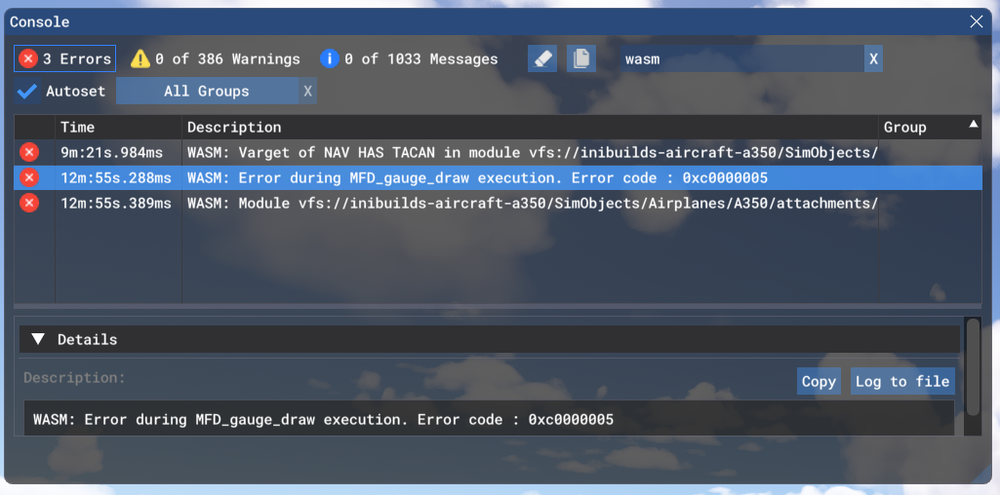
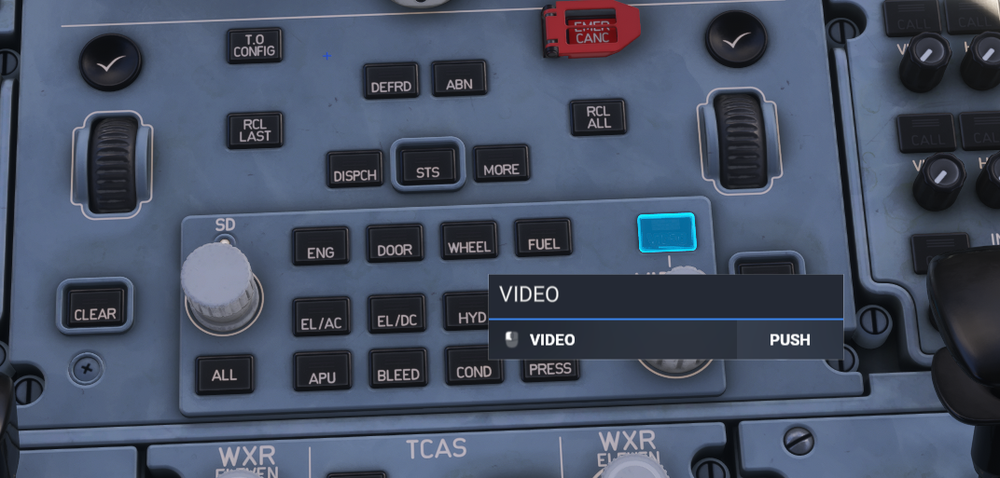
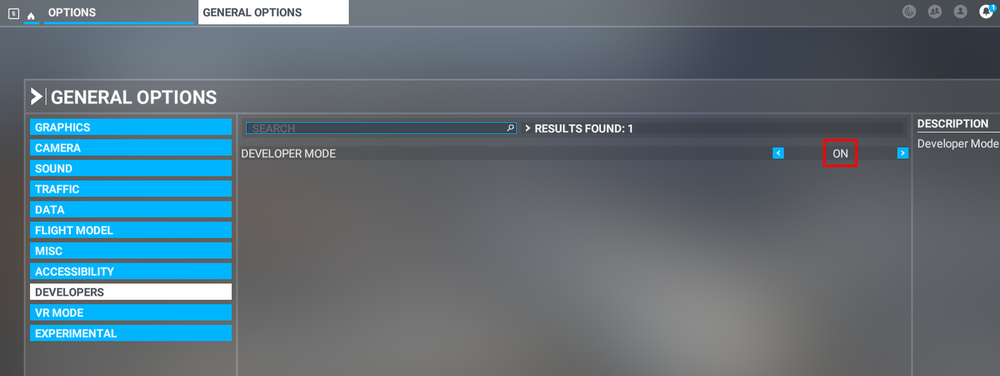
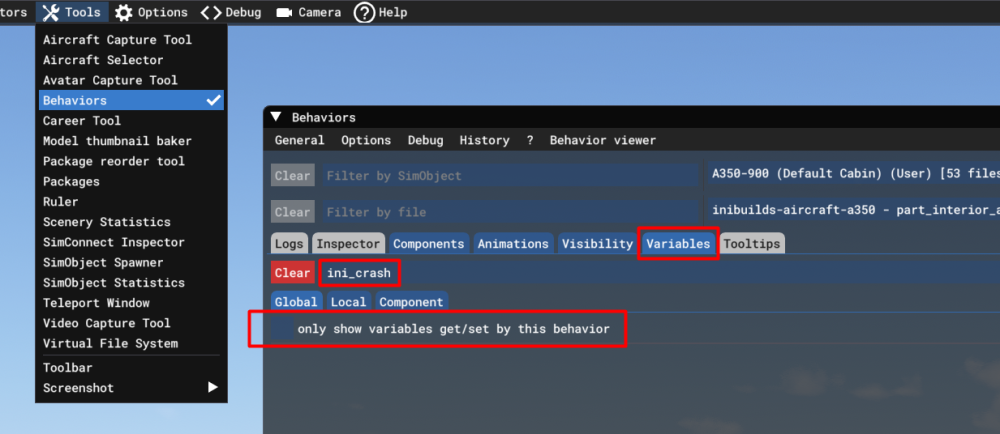
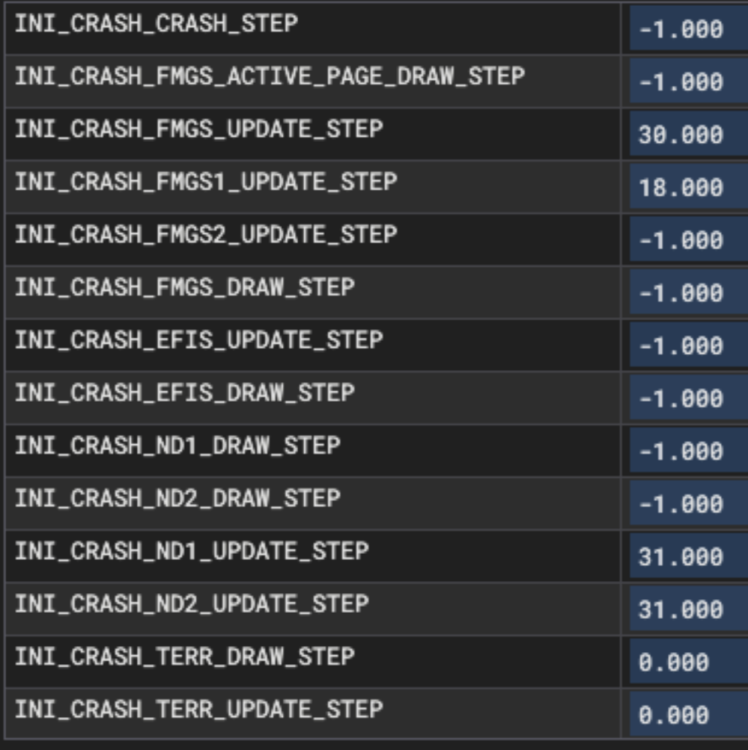
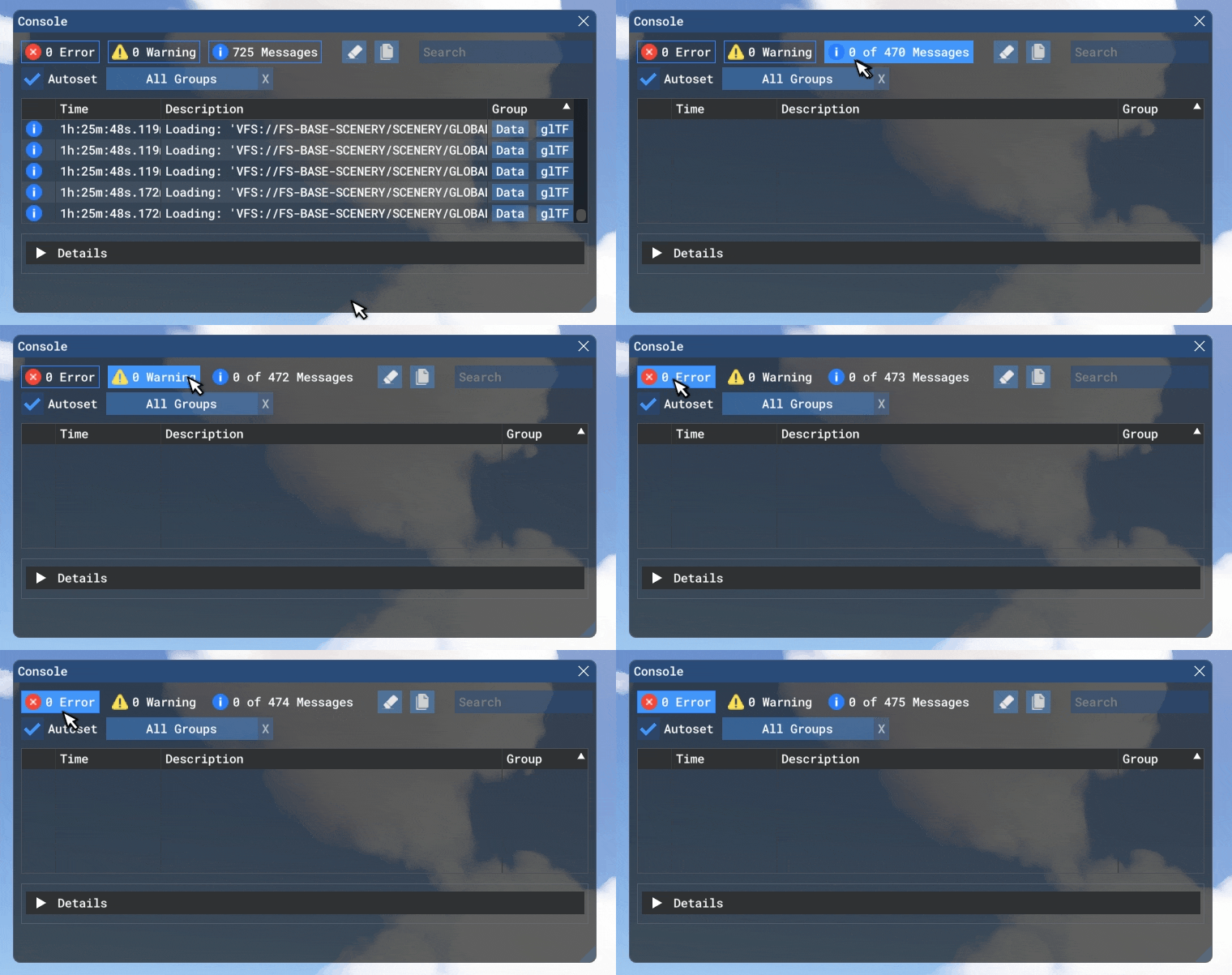
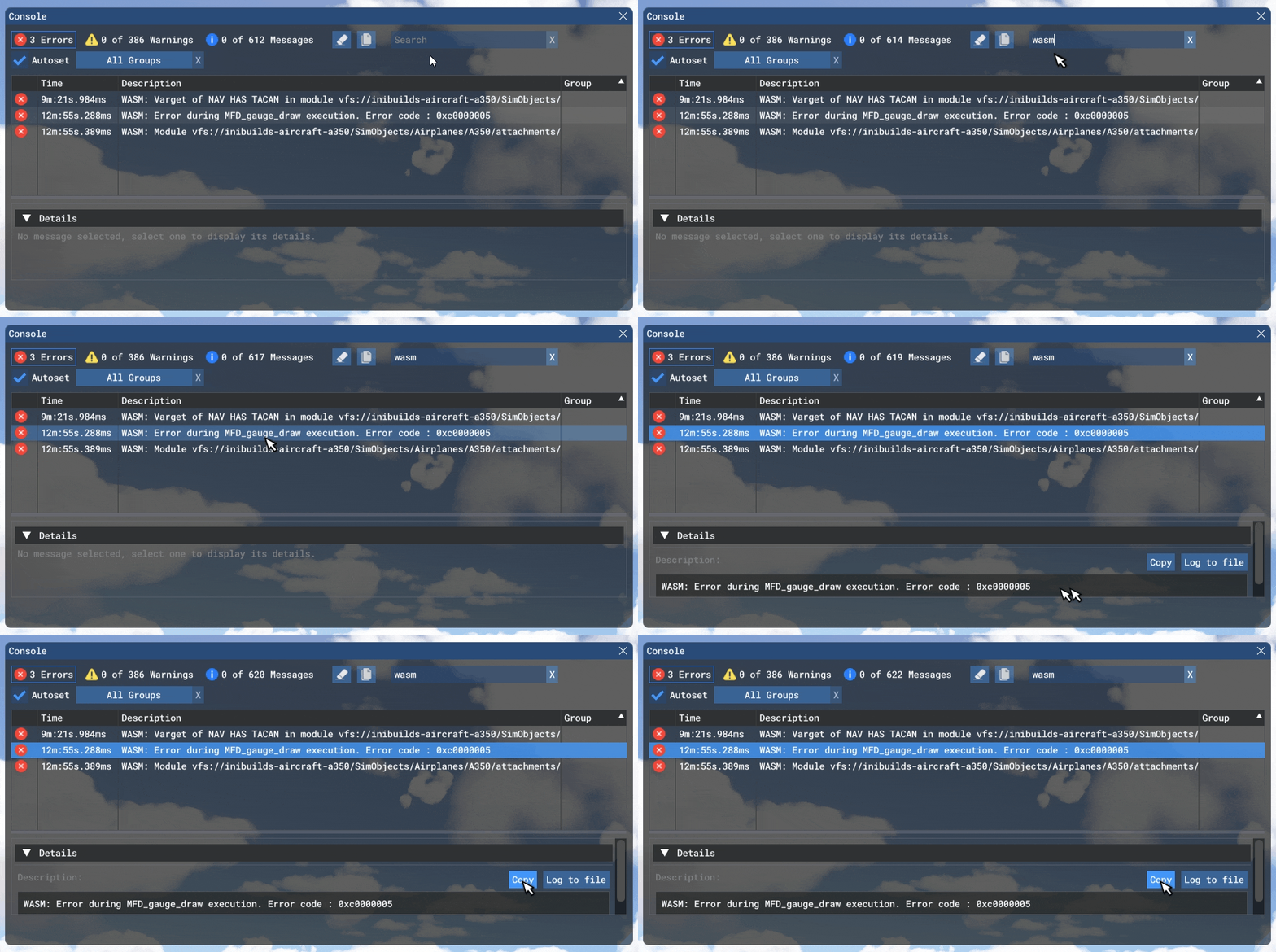
What is WASM?The WebAssembly Module (WASM) is a container for running programmes written in other langauges (eg C/C++) that is then converted to native code ahead of time (as DLLs) during first launch (WASM Compilation). This helps improve performance for subsequent uses but causes longer load times on first launch. See for more info: This improves security of the sim and portability of projects across PC/Xbox. In case of issues, only the WASM crashes instead of the rest of the sim along side with it. This is why the sim and some functions may continue to work, however other systems and displays that use WASM on the aircraft become unresponsive or "freeze" in place. So what to do in case of WASM crash? Do not close the sim/restart flight immediately Verify the WASM error message Report the WASM error message with reproduction steps using the guide below. Verify WASM Crash in SimStep 1. Enable Developer Mode FS20 Options > General Options > Developers FS24 Settings > General > Advanced Options Step 2. Enable the Console by pressing "~" key on your keyboard or using the Dev Toolbar at the top of the screen Step 3. Filter the Console by ❌Error messages only by clicking on ⚠️Warning and ℹ️Messages to disable them (remove blue box border around them). Step 4. Type 'WASM' in the search box. Find the WASM Error and Copy the message. Also take a screenshot of this console window for making a report. Step 5. Check the newly exposed INI_CRASH LVARs via the Behaviours Menu. Also take a screenshot of this for making a report. Accessing Behaviours Menu FS24 Via the DevMode toolbar at the top, select Tools > Behaviours and navigate to the Variables tab. Uncheck "Only Show Variables get/set....". Type 'INI_CRASH' in the search box and expand their name to display the values. FS20 Via the DevMode toolbar at the top, select Tools > Behaviours and navigate to the Variables tab. Type 'INI_CRASH' in the search box and expand their name to display the values. Note These variables will only be exposed after a WASM crash has been detected. These variables only record the last known state of various aircraft functions executed just before the crash was detected, not the source of it. This additional information is most useful during reproduction of the crash circumstances along with your autosave and reproduction steps requested below. Report WASM Crash on ForumStep 6. Paste the WASM Error message, screenshot of the Console and INI_CRASH LVARs obtained in Step 4 and Step 5 above into a forum post/discord message/ support ticket WASM Crash Report. Step 7. Take note of what you pressed or things you did, just before you noticed this crash happen. Step 8. Verify if you are able to repeat the crash by following those same steps. Step 9. Please provide the following information Aircraft: A350-900 or -1000 Simulator: FS2020 or 24 Navdata Method: SIM DEFAULT or NAVIGRAPH OFP: Include a PDF of your Operational Flightplan (OFP) if related to FMS/Route Procedures crashes WASM Error: The error you copied in Step 4 above WASM Variables: Attach a screenshot of the crash variables seen in Step 5 above. Specs: CPU, GPU and RAM of your system. Autosave File: Please include the latest ".bin" autosave file prior to your crash. Step 10. Where possible, include on your report a Screenshot / Video showing what you pressed/did just before the crash happened to give us more clues. steps on how to reproduce the crash so that we can try ourselves with debugging tools to identify the cause of crash. The Autosave File, include the latest ".bin" autosave file prior to your crash to help us reload into same scenario. Autosave Folder Paths These types of WASM crashes are heavily dependent on the actions taken just before the issue occurs. Detailed reports of the exact steps leading up to the crash are extremely helpful, as if we’re able to reproduce the issue internally using the same sequence, our team can investigate, debug, and resolve it much more effectively.




-
What is WASM?The WebAssembly Module (WASM) is a container for running programmes written in other langauges (eg C/C++) that is then converted to native code ahead of time (as DLLs) during first launch (WASM Compilation). This helps improve performance for subsequent uses but causes longer load times on first launch. See for more info: This also improves security of the sim and portability of projects across PC/Xbox/PS5. In case of issues, only the WASM crashes instead of the rest of the sim along side with it. This is why the sim and some functions may continue to work, however other systems and displays that use WASM on the aircraft become unresponsive or "freeze" in place. So what to do in case of WASM crash?Do not close the sim/restart flight immediately Verify the WASM error message & crash LVARs Report the WASM error message & crash LVARs with reproduction steps using the guide below. Verify WASM Crash in SimStep 1. Enable Developer Mode FS24 Settings > General > Advanced Options FS20 Options > General Options > Developers Step 2. Enable the Console by pressing "~" key on your keyboard or using the Dev Toolbar at the top of the screen Step 3. Filter the Console by ❌Error messages only by clicking on ⚠️Warning and ℹ️Messages to disable them (remove blue box border around them). Step 4. Type 'WASM' in the search box. Find the WASM Error and Copy the message. Also take a screenshot of this console window for making a report. Step 5. Check the newly exposed INI_CRASH LVARs via the Behaviours Menu. Also take a screenshot of this for making a report. Accessing Behaviours Menu FS24 Via the DevMode toolbar at the top, select Tools > Behaviours and navigate to the Variables tab. Uncheck "Only Show Variables get/set....". Type 'INI_CRASH' in the search box and expand their name to display the values. FS20 Via the DevMode toolbar at the top, select Tools > Behaviours and navigate to the Variables tab. Type 'INI_CRASH' in the search box and expand their name to display the values. Report WASM Crash on ForumStep 6. Paste the WASM Error message, screenshot of the Console and INI_CRASH LVARs obtained in Step 4 and Step 5 above into a forum post/discord message/ support ticket WASM Crash Report. Step 7. Take note of what you pressed or things you did, just before you noticed this crash happen. Step 8. Verify if you are able to repeat the crash by following those same steps. Step 9. Please provide the following information Aircraft: A350-900 or -1000 Simulator: FS2020 or 24 Navdata Method: SIM DEFAULT or NAVIGRAPH OFP: Include a PDF of your Operational Flightplan (OFP) if related to FMS/Route Procedures crashes WASM Error: The error you copied in Step 4 above Specs: CPU, GPU and RAM of your system. Autosave File: Please include the latest ".bin" autosave file prior to your crash. Step 10. Where possible, include on your report a Screenshot / Video showing what you pressed/did just before the crash happened to give us more clues. steps on how to reproduce the crash so that we can try ourselves with debugging tools to identify the cause of crash. The Autosave File, include the latest ".bin" autosave file prior to your crash to help us reload into same scenario. Autosave Folder Paths These types of WASM crashes are heavily dependent on the actions taken just before the issue occurs. Detailed reports of the exact steps leading up to the crash are extremely helpful, as if we’re able to reproduce the issue internally using the same sequence, our team can investigate, debug, and resolve it much more effectively.

-
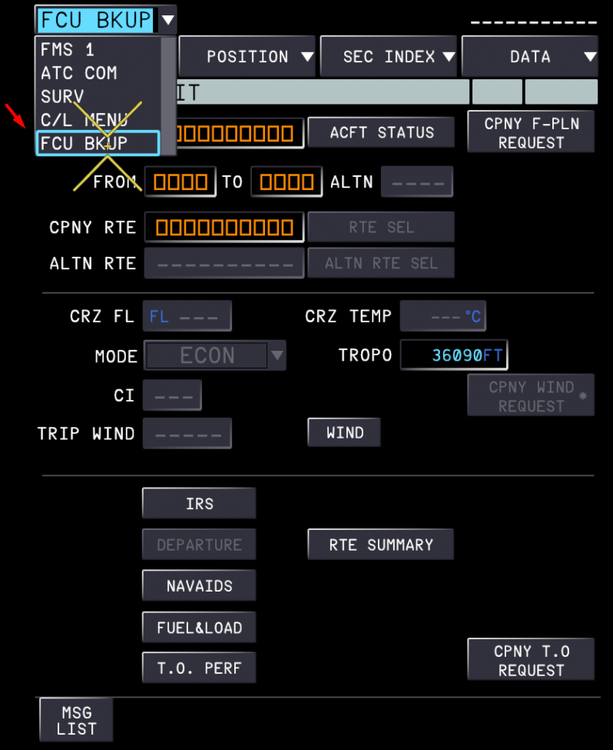
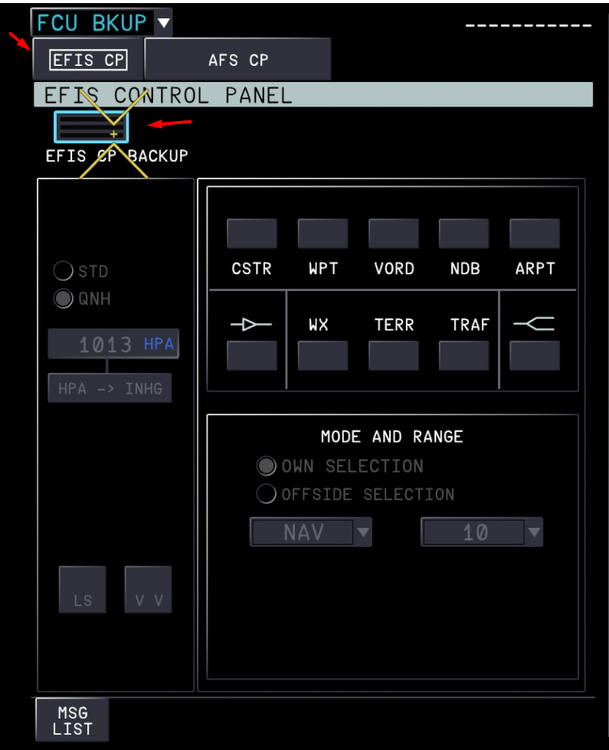
The iniBuilds A350 Airliner simulates the MFD Controlled Backup EFIS and AFS Control panels which can be used in case of inoperational buttons/equipment. If you find yourself with your EFIS CP displays blank as above, ensure that on the MFD FCU BKUP page that EFIS CP BACKUP is disabled as follows: On the MFD Menu Dropdown select the FCU BKUP option Ensure you are on the EFIS CP page and verify that the the EFIS CP BACKUP button light is off (not green)

-
The iniBuilds A350 Airliner simulates the MFD Controlled Backup EFIS and AFS Control panels which can be used in case of inoperational buttons/equipment. If you find yourself with your EFIS CP displays blank as above, ensure that on the MFD FCU BKUP page that EFIS CP BACKUP is disabled as follows: On the MFD Menu Dropdown select the FCU BKUP option Ensure you are on the EFIS CP page and verify that the the EFIS CP BACKUP button light is off (not green)
-
Changing Weight Measurement Units (LBS / KGS) The aircraft weight measurement units (LBS / KGS) are changed on the OIS Settings Page which can be reached via FLT OPS MENU > OPTIONS > OIS SETTINGS. Select your desired unit by clicking on its respective button. (Click to enlarge image)

-
Changing Weight Measurement Units (LBS / KGS) The aircraft weight measurement units (LBS / KGS) are changed on the OIS Settings Page which can be reached via FLT OPS MENU > OPTIONS > OIS SETTINGS. Select your desired unit by clicking on its respective button. (Click to enlarge image)
-
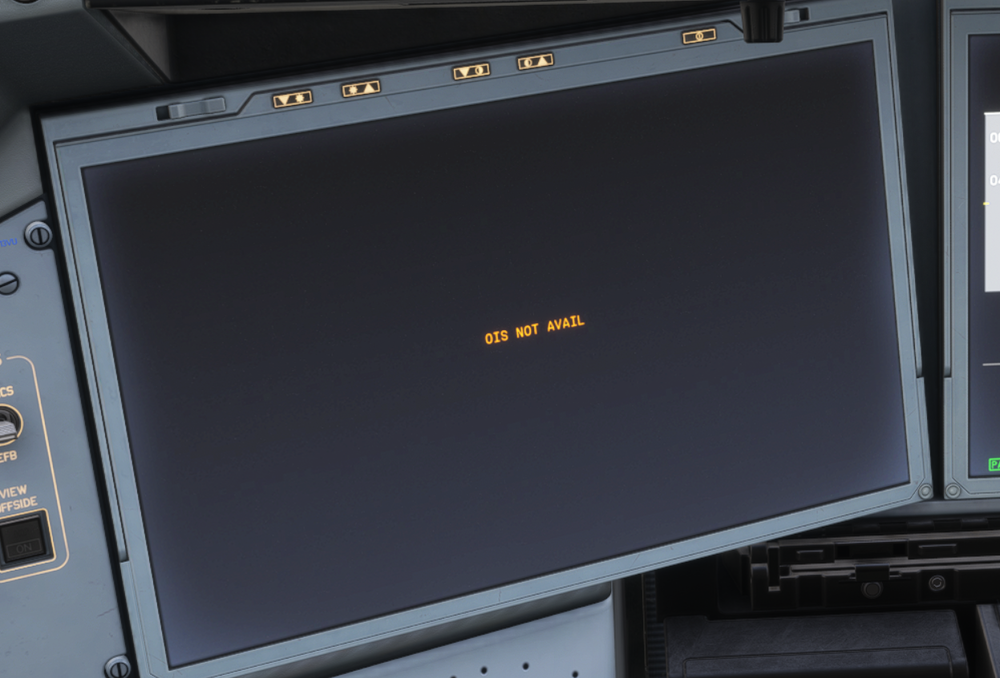
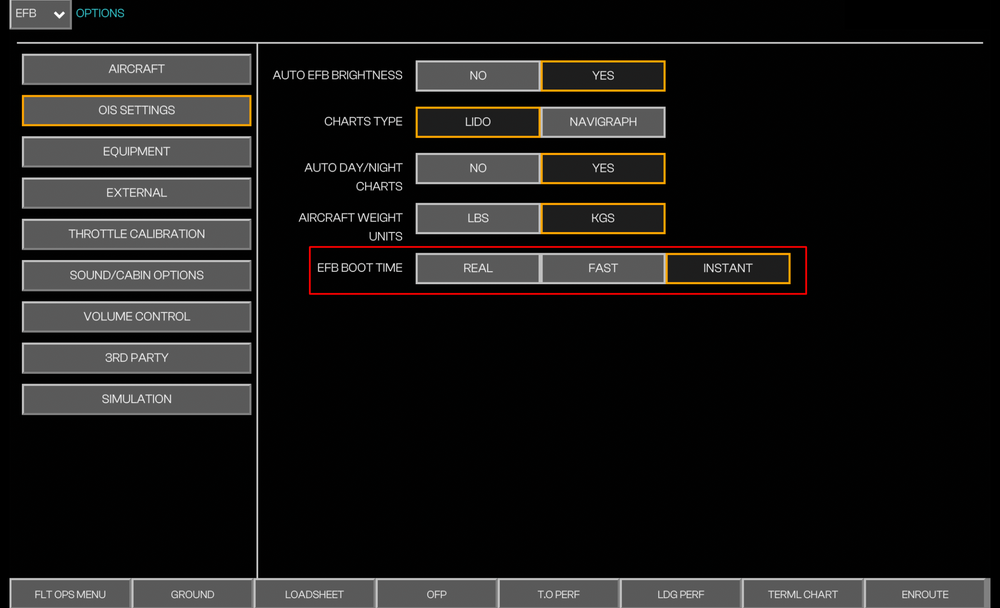
The iniBuilds A350 Airliner simulates the realistic boot time for the On-board Information System (OIS) by default. During the boot-up the computer that powers the OIS is turning on and running through its system checks. Change OIS Boot Time You can change the OIS Boot Time via the OIS Settings page (FLT OPS MENU > OPTIONS > OIS SETTINGS) REAL: Set by default - can take up to 10 minutes. FAST: Can take up to 5 minutes INSTANT: Will boot up instantly upon availability of GPU/APU power.
-
The iniBuilds A350 Airliner simulates the realistic boot time for the On-board Information System (OIS) by default. During the boot-up the computer that powers the OIS is turning on and running through its system checks. Change OIS Boot Time You can change the OIS Boot Time via the OIS Settings page (FLT OPS MENU > OPTIONS > OIS SETTINGS) REAL: Set by default - can take up to 10 minutes. FAST: Can take up to 5 minutes INSTANT: Will boot up instantly upon availability of GPU/APU power.
-
The iniBuilds A350 Airliner for MSFS 2020 and 2024 uses Web-Assembly Module (WASM) to run its code in the simulator environment. As with all other WASM aircraft, the simulator needs to compile the necessary WASM files on first launch. However it will be much faster to load on subsequent launches. In case your sim crashes or you exit to menu during this initial WASM compile, please see the guide below to clear your WASM folder and try again:
-
The iniBuilds A350 Airliner for MSFS 2020 and 2024 uses Web-Assembly Module (WASM) to run its code in the simulator environment. As with all other WASM aircraft, the simulator needs to compile the necessary WASM files on first launch. However it will be much faster to load on subsequent launches. In case your sim crashes or you exit to menu during this initial WASM compile, please see the guide below to clear your WASM folder and try again:
-
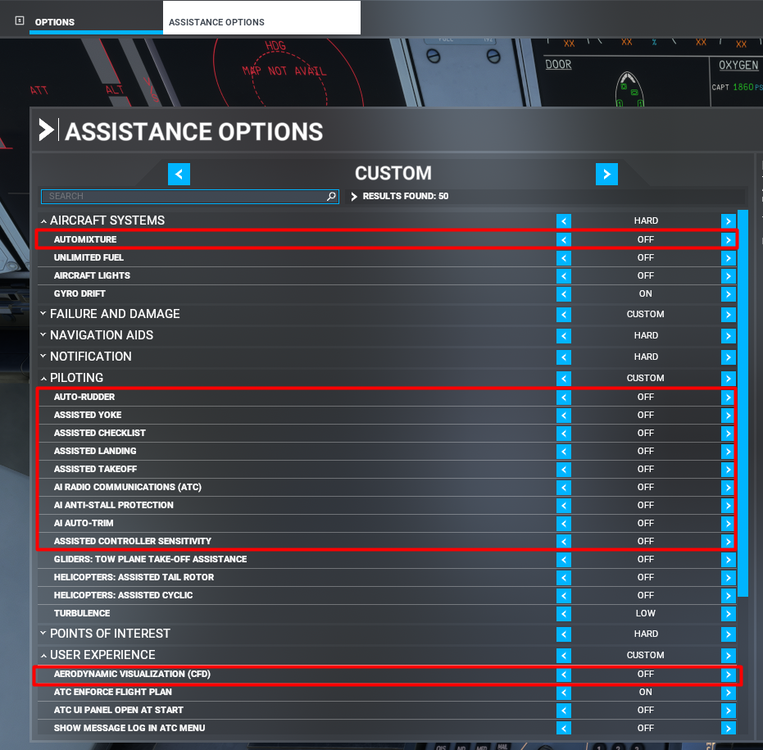
Hi For those of you experiencing these issues, first of all ensure all the assistances are disabled per below: Also ensure you do not have any conflicting keybinds (keyboard or other controllers) related to RUDDER, AILERON or PITCH TRIM set in your control settings. Thanks!
-
Note: On the iniBuilds A350 Airliner (v1.0.0), please make sure that if you change SID/STAR/APP or RUNWAY that you have your ICAO of your airport shown on the F-PLN page with the expected runway. Example if your flight plan page shows EGLL but you have inserted a runway and STAR along with ILS then reselect them until you have EGLL27L shown on the F-PLN page, this goes for all airports. If not done the aircraft can possibly not work out the VNAV path and cause a WASM crash.


-
Note: On the iniBuilds A350 Airliner (v1.0.0), please make sure that if you change SID/STAR/APP or RUNWAY that you have your ICAO of your airport shown on the F-PLN page with the expected runway. Example if your flight plan page shows EGLL but you have inserted a runway and STAR along with ILS then reselect them until you have EGLL27L shown on the F-PLN page, this goes for all airports. If not done the aircraft can possibly not work out the VNAV path and cause a WASM crash.
-
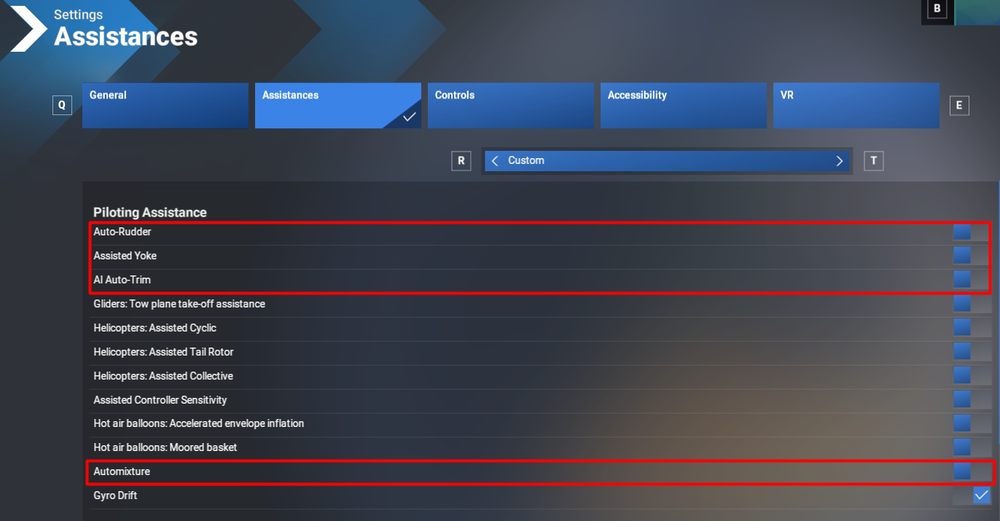
If your aircraft is not following the flight path correctly, please check your MSFS Assistance settings and ensure that the 4 options highlighted below in red below are switched to OFF.
-
If your aircraft is not following the flight path correctly, please check your MSFS Assistance settings and ensure that the options highlighted below in red below are set to OFF.
-
The iniBuilds A350 Airliner offers numerous configurable options to optimise the performance per the best needs for your hardware. One such way to reduce GPU load and improve FPS is the Performance Mode toggle on the OIS Simulation Settings page ( FLT OPS MENU > OPTIONS > SIMULATION) When the button is set to, ON: The Gear, Gear Bays, Avionics Bay, Cargo Bay, Hatch interiors, and Engine Interiors are unloaded by default. OFF: The above items remain visible per FS2024 LOD system as normal.

-
Our aircraft are best used with linear sensitivity settings for your axis, with deadzones as necessary for your hardware. To set this, go to your Settings > Controls > Select your controller > Hardware settings and set it up as shown below.


