Everything posted by richboy2307
-
CSTR
Hi @Zangoose Yes this can be managed by either EFIS control panel on the glareshield.. Select NAV then CSTR.
-
How to - force a re-download of streamed packages?
If you're experiencing issues with streamed packages, please follow the below steps to force a re-download of the affected files: Close the simulator. Navigate to the affected aircraft's "Streamed Packages" folder: Steam: MS Store: Delete the folder itself. Restart the sim. The deleted files will be re-streamed from the servers.
-
How to - force a re-download of streamed packages?
If you're experiencing issues with streamed packages, please follow the below steps to force a re-download of the affected files: Close the simulator. Navigate to the affected aircraft's "Streamed Packages" folder: Steam: MS Store: Delete the folder itself. Restart the sim. The deleted files will be re-streamed from the servers.
-
How to - force a re-download of streamed packages?
If you're experiencing issues with streamed packages, please follow the below steps to force a re-download of the affected files: Close the simulator. Navigate to the affected aircraft's "Streamed Packages" folder: Steam: MS Store: Delete the folder itself. Restart the sim. The deleted files will be re-streamed from the servers.
-
How to - force a re-download of streamed packages?
If you're experiencing issues with streamed packages, please follow the below steps to force a re-download of the affected files: Close the simulator. Navigate to the affected aircraft's "Streamed Packages" folder: Steam: MS Store: Delete the folder itself. Restart the sim. The deleted files will be re-streamed from the servers.
-
How to - force a re-download of streamed packages?
If you're experiencing issues with streamed packages, please follow the below steps to force a re-download of the affected files: Close the simulator. Navigate to the affected aircraft's "Streamed Packages" folder: Steam: MS Store: Delete the folder itself. Restart the sim. The deleted files will be re-streamed from the servers.
-
How to - force a re-download of streamed packages?
If you're experiencing issues with streamed packages, please follow the below steps to force a re-download of the affected files: Close the simulator. Navigate to the affected aircraft's "Streamed Packages" folder: Steam: MS Store: Delete the folder itself. Restart the sim. The deleted files will be re-streamed from the servers.
-
Pushback and engine start not working
Hi @FlightSimJack Thanks for your report. I have just tried and not able to reproduce any of these issues on my end. Which leads me to believe that it is likely related to the on-going server issues that lead to improperly streamed packages. Please close the sim and delete the A321 from your streamed packages folder. This will force the sim to re-stream the package on next launch, then try again and see if you're still having these issues. The paths are as follows: Steam: MS Store: Thanks!
-
Help - No aircraft sounds on streamed packages?
If you're experiencing issue of missing sounds (complete or partial) on the streamed packages, please follow the below steps to force a re-download of the affected files: Close the simulator. Navigate to the affected aircraft's "Streamed Packages" folder: Steam: MS Store: Delete all the files in this folder. Restart the sim. The deleted files will be re-streamed from the servers.
-
Help - No aircraft sounds on streamed packages?
If you're experiencing issue of missing sounds (complete or partial) on the streamed packages, please follow the below steps to force a re-download of the affected files: Close the simulator. Navigate to the affected aircraft's "Streamed Packages" folder: Steam: MS Store: Delete all the files in this folder. Restart the sim. The deleted files will be re-streamed from the servers.
-
Help - No aircraft sounds on streamed packages?
If you're experiencing issue of missing sounds (complete or partial) on the streamed packages, please follow the below steps to force a re-download of the affected files: Close the simulator. Navigate to the affected aircraft's "Streamed Packages" folder: Steam: MS Store: Delete all the files in this folder. Restart the sim. The deleted files will be re-streamed from the servers.
-
Help - No aircraft sounds on streamed packages?
If you're experiencing issue of missing sounds (complete or partial) on the streamed packages, please follow the below steps to force a re-download of the affected files: Close the simulator. Navigate to the affected aircraft's "Streamed Packages" folder: Steam: MS Store: Delete all the files in this folder. Restart the sim. The deleted files will be re-streamed from the servers.
-
Help - No aircraft sounds on streamed packages?
If you're experiencing issue of missing sounds (complete or partial) on the streamed packages, please follow the below steps to force a re-download of the affected files: Close the simulator. Navigate to the affected aircraft's "Streamed Packages" folder: Steam: MS Store: Delete all the files in this folder. Restart the sim. The deleted files will be re-streamed from the servers.
-
Help - No aircraft sounds on streamed packages?
If you're experiencing issue of missing sounds (complete or partial) on the streamed packages, please follow the below steps to force a re-download of the affected files: Close the simulator. Navigate to the affected aircraft's "Streamed Packages" folder: Steam: MS Store: Delete all the files in this folder. Restart the sim. The deleted files will be re-streamed from the servers.
-
How to - Calibrate my throttles?
Issues with Calibration If you experience any issues with the Throttle Calibration process, you may force-reset the calibration on the EFB via either of the following methods: PC & Xbox: Toggle the "Reverse on Axis" option between YES and NO a few times to reset the calibration. PC Only: Delete the 'ThrottleData.ini' file to start fresh on next launch of the simulator. This file will be found in the work folder of the aircraft, and the path will vary based on where you purchased the simulator: Steam: %APPDATA%\Microsoft Flight Simulator 2024\WASM\MSFS2024\microsoft-aircraft-belugaxl\work MS Store: %LOCALAPPDATA%\Packages\Microsoft.Limitless_8wekyb3d8bbwe\LocalState\WASM\MSFS2024\microsoft-aircraft-belugaxl\work Issues with Reversers If you experience any issues with the operation of reversers on hardware with reverse on axis (E.g. TCA Quadrant Airbus Edition), please ensure the following: Reverse on Axis: Ensure you have selected YES on the EFB Throttle Calibration page. Calibration: Ensure you have completed the calibration at least once. This will ensure the creation of a 'ThrottleData.ini' file. ThrottleData.ini : The file can be found at the path stated above. Open with a text editor (e.g. Notepad) and check that it says the following - [throttle] reverse_on_axis = true If it says false, change it to true as above. Reversers should then work after a sim restart.
-
How to - Calibrate my throttles?
Issues with Calibration If you experience any issues with the Throttle Calibration process, you may force-reset the calibration on the EFB via either of the following methods: PC & Xbox: Toggle the "Reverse on Axis" option between YES and NO a few times to reset the calibration. PC Only: Delete the 'ThrottleData.ini' file to start fresh on next launch of the simulator. This file will be found in the work folder of the aircraft, and the path will vary based on where you purchased the simulator: Steam: %APPDATA%\Microsoft Flight Simulator 2024\WASM\MSFS2024\microsoft-aircraft-a330\work MS Store: %LOCALAPPDATA%\Packages\Microsoft.Limitless_8wekyb3d8bbwe\LocalState\WASM\MSFS2024\microsoft-aircraft-a330\work Issues with Reversers If you experience any issues with the operation of reversers on hardware with reverse on axis (E.g. TCA Quadrant Airbus Edition), please ensure the following: Reverse on Axis: Ensure you have selected YES on the EFB Throttle Calibration page. Calibration: Ensure you have completed the calibration at least once. This will ensure the creation of a 'ThrottleData.ini' file. ThrottleData.ini : The file can be found at the path stated above. Open with a text editor (e.g. Notepad) and check that it says the following - [throttle] reverse_on_axis = true If it says false, change it to true as above. Reversers should then work after a sim restart.
-
How to - Calibrate my throttles?
Issues with Calibration If you experience any issues with the Throttle Calibration process, you may force-reset the calibration on the EFB via either of the following methods: PC & Xbox: Toggle the "Reverse on Axis" option between YES and NO a few times to reset the calibration. PC Only: Delete the 'ThrottleData.ini' file to start fresh on next launch of the simulator. This file will be found in the work folder of the aircraft, and the path will vary based on where you purchased the simulator: Steam: %APPDATA%\Microsoft Flight Simulator 2024\WASM\MSFS2024\microsoft-aircraft-a321\work MS Store: %LOCALAPPDATA%\Packages\Microsoft.Limitless_8wekyb3d8bbwe\LocalState\WASM\MSFS2024\microsoft-aircraft-a321\work Issues with Reversers If you experience any issues with the operation of reversers on hardware with reverse on axis (E.g. TCA Quadrant Airbus Edition), please ensure the following: Reverse on Axis: Ensure you have selected YES on the EFB Throttle Calibration page. Calibration: Ensure you have completed the calibration at least once. This will ensure the creation of a 'ThrottleData.ini' file. ThrottleData.ini : The file can be found at the path stated above. Open with a text editor (e.g. Notepad) and check that it says the following - [throttle] reverse_on_axis = true If it says false, change it to true as above. Reversers should then work after a sim restart.
-
How to - Calibrate my throttles?
Issues with Calibration If you experience any issues with the Throttle Calibration process, you may force-reset the calibration on the EFB via either of the following methods: PC & Xbox: Toggle the "Reverse on Axis" option between YES and NO a few times to reset the calibration. PC Only: Delete the 'ThrottleData.ini' file to start fresh on next launch of the simulator. This file will be found in the work folder of the aircraft, and the path will vary based on where you purchased the simulator: Steam: %APPDATA%\Microsoft Flight Simulator 2024\WASM\MSFS2024\microsoft-aircraft-a320neo\work MS Store: %LOCALAPPDATA%\Packages\Microsoft.Limitless_8wekyb3d8bbwe\LocalState\WASM\MSFS2024\microsoft-aircraft-a320neo\work Issues with Reversers If you experience any issues with the operation of reversers on hardware with reverse on axis (E.g. TCA Quadrant Airbus Edition), please ensure the following: Reverse on Axis: Ensure you have selected YES on the EFB Throttle Calibration page. Calibration: Ensure you have completed the calibration at least once. This will ensure the creation of a 'ThrottleData.ini' file. ThrottleData.ini : The file can be found at the path stated above. Open with a text editor (e.g. Notepad) and check that it says the following - [throttle] reverse_on_axis = true If it says false, change it to true as above. Reversers should then work after a sim restart.
-
How to - Calibrate my throttles?
Issues with Calibration If you experience any issues with the Throttle Calibration process, you may force-reset the calibration on the EFB via either of the following methods: PC & Xbox: Toggle the "Reverse on Axis" option between YES and NO a few times to reset the calibration. PC Only: Delete the 'ThrottleData.ini' file to start fresh on next launch of the simulator. This file will be found in the work folder of the aircraft, and the path will vary based on where you purchased the simulator: Steam: %APPDATA%\Microsoft Flight Simulator 2024\WASM\MSFS2024\microsoft-aircraft-a400m\work MS Store: %LOCALAPPDATA%\Packages\Microsoft.Limitless_8wekyb3d8bbwe\LocalState\WASM\MSFS2024\microsoft-aircraft-a400m\work Issues with Reversers If you experience any issues with the operation of reversers on hardware with reverse on axis (E.g. TCA Quadrant Airbus Edition), please ensure the following: Reverse on Axis: Ensure you have selected YES on the EFB Throttle Calibration page. Calibration: Ensure you have completed the calibration at least once. This will ensure the creation of a 'ThrottleData.ini' file. ThrottleData.ini : The file can be found at the path stated above. Open with a text editor (e.g. Notepad) and check that it says the following - [throttle] reverse_on_axis = true If it says false, change it to true as above. Reversers should then work after a sim restart.
-
Default cockpit & instrusments views are a complete mess
Hi @HawxNS Thanks for your feedback. Forwarded to the team.
-
Full Integration with the new EFB
Hi @Hawk The new universal EFB available in MSFS 2024 is currently only interactable via the dedicated Toolbar Panel 2D Window. At launch, the requisite API/Documentation which would allow for integration of its features independently to the first party airbus aircraft (especially in 3D) is unfortunately unavailable. So for such feedback we recommend sharing on the MS Forums directly, specifically the Wishlist section (https://forums.flightsimulator.com/c/official/wishlist/163) such that those who can make such decisions have visibility on these requests. Thanks!
-
My friend and I can't set up the reverser plane.
Hi @Marwan Please ensure you have correctly completed the throttle calibration process via the aircraft EFB: https://forum.inibuilds.com/topic/24052-how-to-calibrate-my-throttles/ If you are still unable, then this is issue is most likely caused by the on-going server issues affecting streamed packages. Please try again later. Thanks!
-
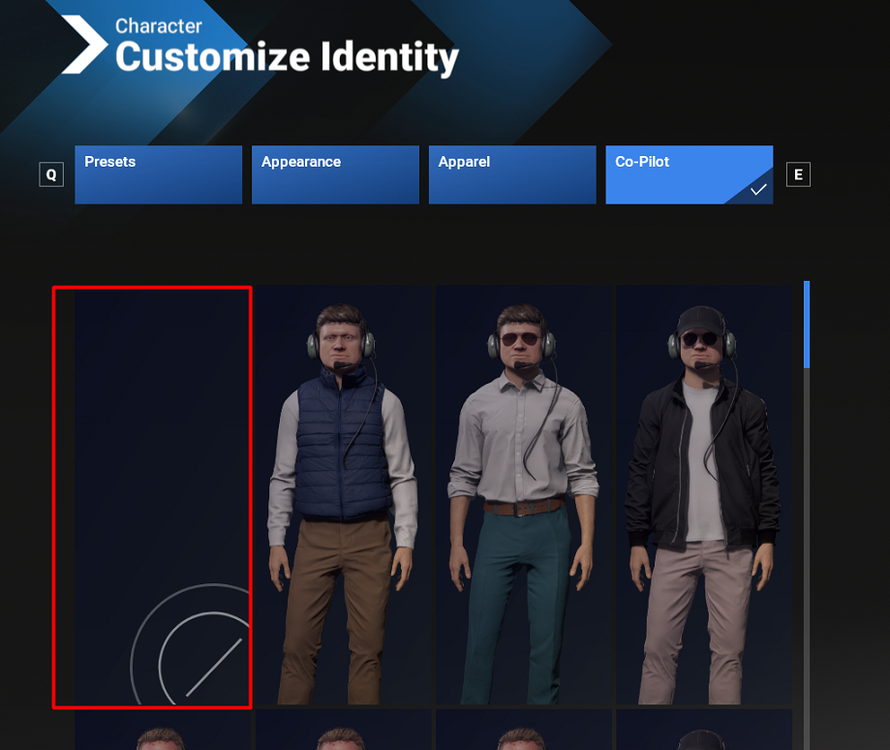
Remove the copilot
Hi @Nuno Pinto Not at this time and as both of these are related to the core sim features, these are best reported on the MS Forums directly. Thanks!
-
A330 PFD/ND popout
Apologies, it seems the key required to do this was unbound on my end. However I can confirm the issue now on A330s. Reported to the team. Thanks!
-
Airline Options
Hi @Nikolas Farin Thanks for your kind words. We appreciate all the feedback however decisions as to product scope (systems depth/fidelity) and features (variants, options etc.) rest solely with Microsoft as it is first and foremost their product. So for such requests we recommend sharing on the MS Forums directly, specifically the Wishlist section (https://forums.flightsimulator.com/c/official/wishlist/163) such that those who can make such decisions have visibility on these requests. Thanks!