




Harry320
Member
-
Joined
-
Last visited
Everything posted by Harry320
-
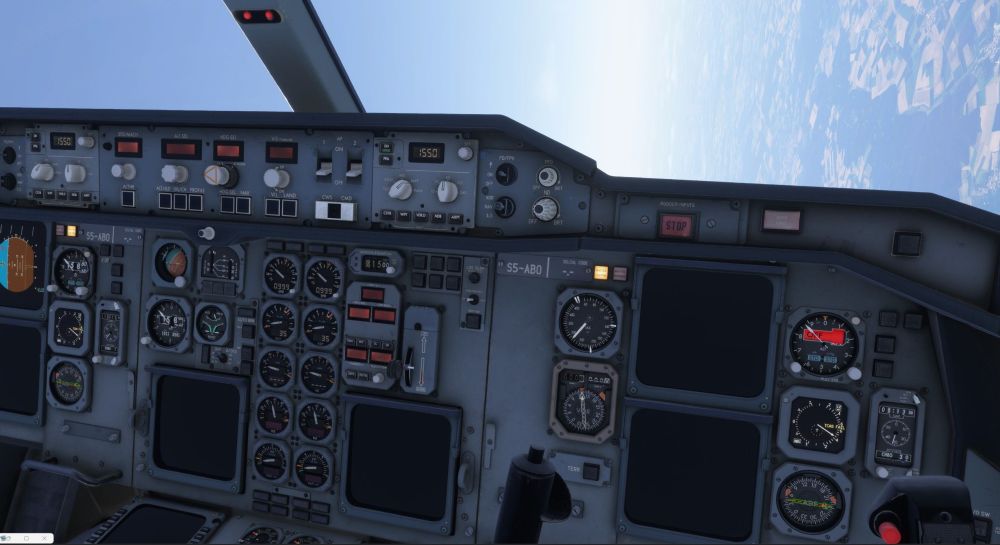
Hello, I can't complete a single flight with the A300-600. About half an hour into the flight, all the systems fail and the plane becomes uncontrollable. Reinstalling the A300 and deleting the WASM A300 folder didn't solve the problem. This happens on every flight.
-
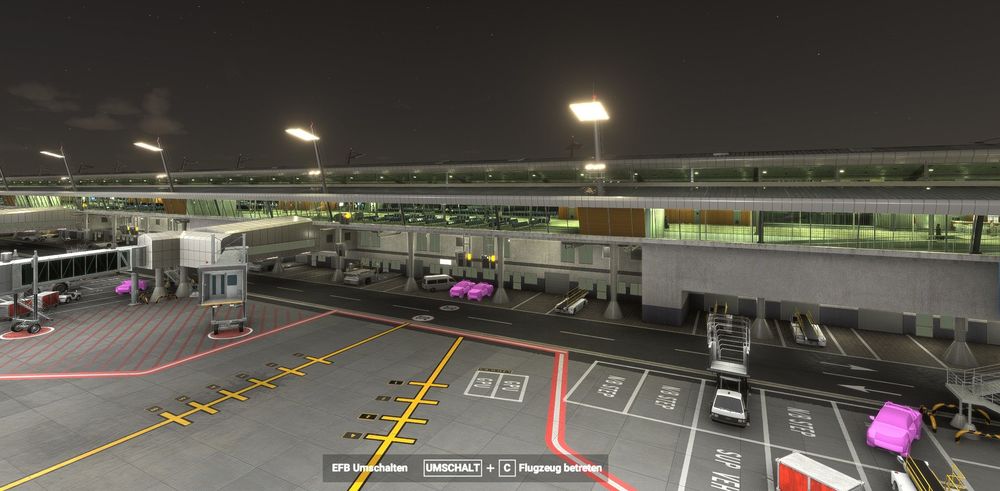
Hello, The issue with the pink vehicles has nothing to do with the FAOR Johannesburg Scenery by Inibuilds! It was caused by a corrupted scenery package named “microsoft-world-point-of-interest” in my Official2020/OneStore folder
-
Dear INIBuilds Team, in the Sceney FAOR Airport for MSFS 2024, vehicle textures are missing. Even after a clean install, they're still not there.
-
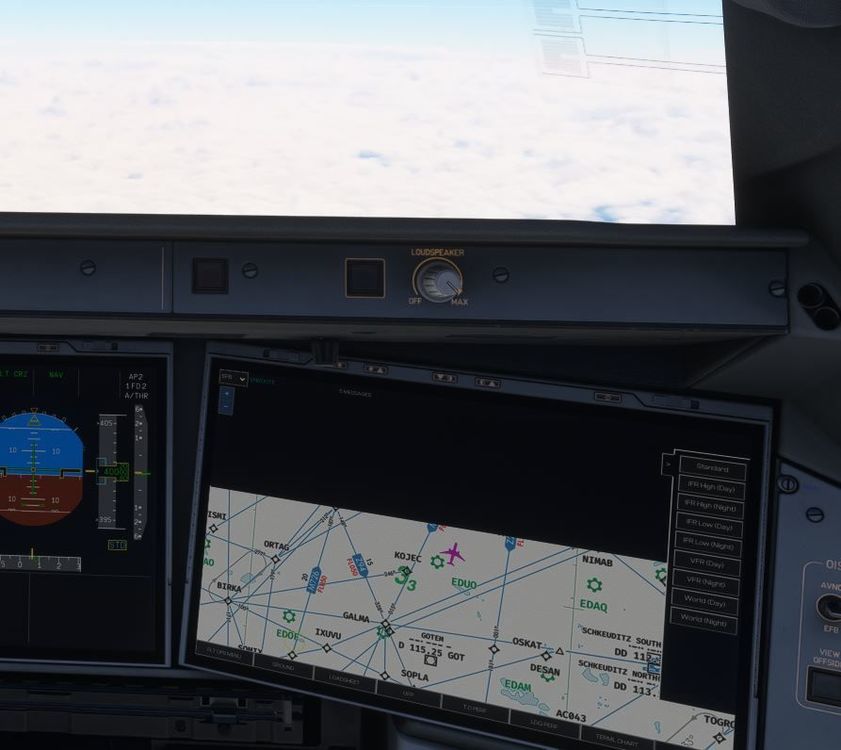
Hello Guys, I have a problem from the beginning with the ENROUTE MAP At the start of the flight I can see the different charts like IFR Day, IFR NIGHT, WORLDMAP or VFR DAY etc.. The problem is that the aircraft remains in the center of the screen but the map moves down. So the airplane leaves the area of the map and the area becomes more and more black. You can see it on picture 1 and after some time on picture 2. The standard map behaves differently. The map moves, but does not leave the screen

-
the same here
-
thanks for your responce, to explain it better, a little addendum again it doesn't happen when I enter the frequency, it happens when I enter the codes Example: Madrid Sid NANDO 3N Enter VOR 1 SSY -> OK Enter VOR2 RBO -> crash Enter VOR 1 117.85 -> OK Enter VOR 2 113.95 -> OK
-
The input freezes when I try to enter VOR 2 in the FMS. Always needs a restart. Every attempt to enter the frequency fails MS2020


