bilookhan
Member
-
Joined
-
Last visited
Everything posted by bilookhan
-
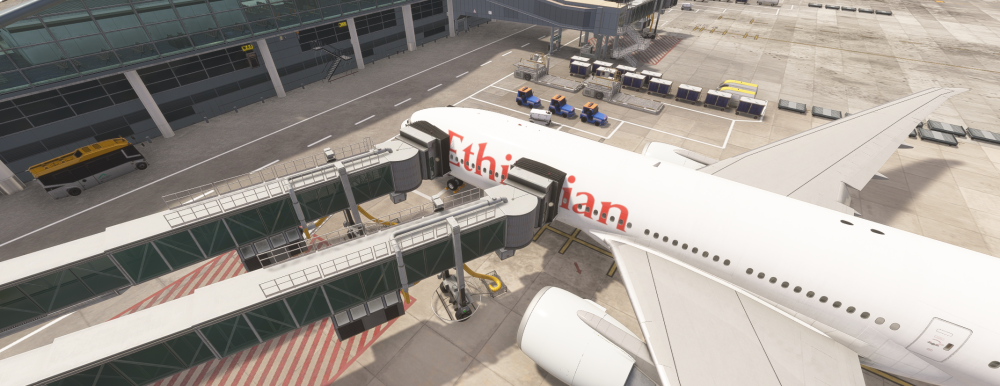
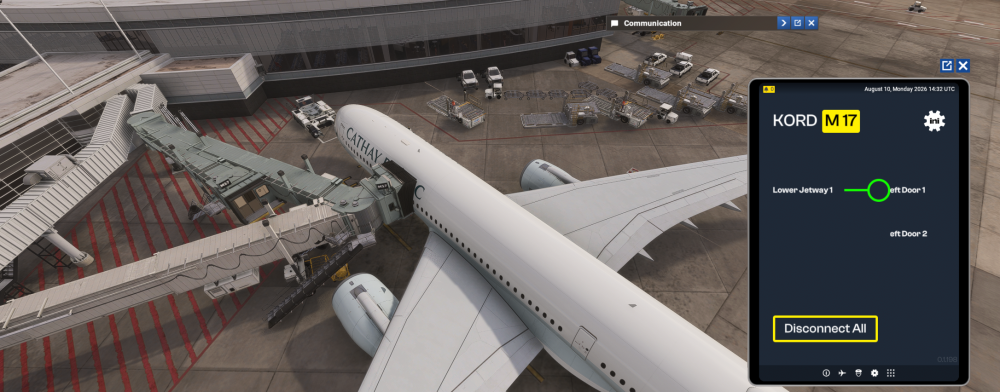
So I managed to find multi jetway working with PMDG. I thought only inibuilds aircraft only worked for now. What was also interesting was if I parked my aircraft more forward than designated spot I was able to connect both jetways to the aircraft. Except Jetway 2 connects to Door 1, and Jetway 1 connects to Door 2. Btw my gate number is W44 if that helps.
-
-
-
-
same here
-
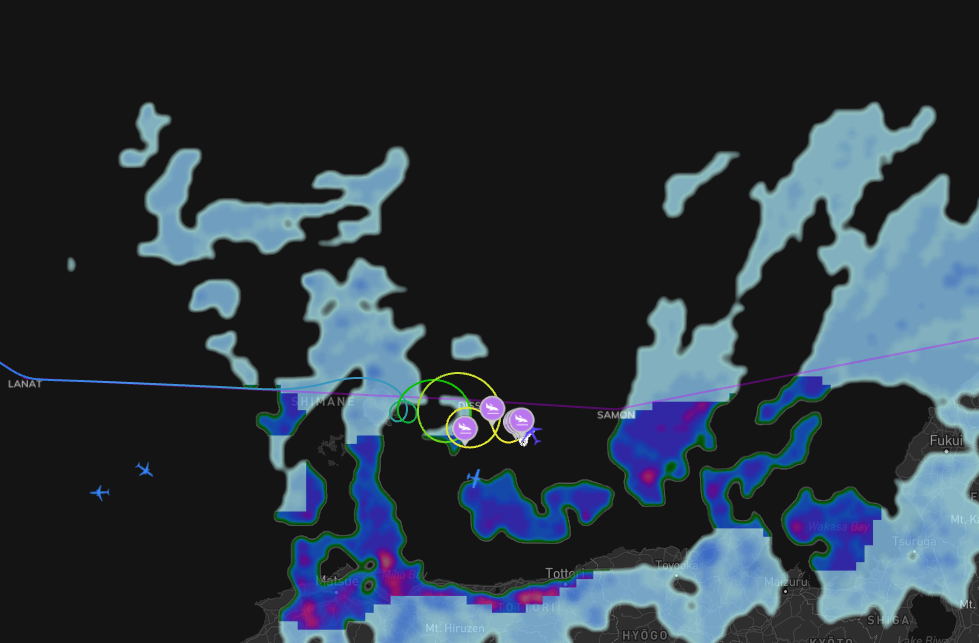
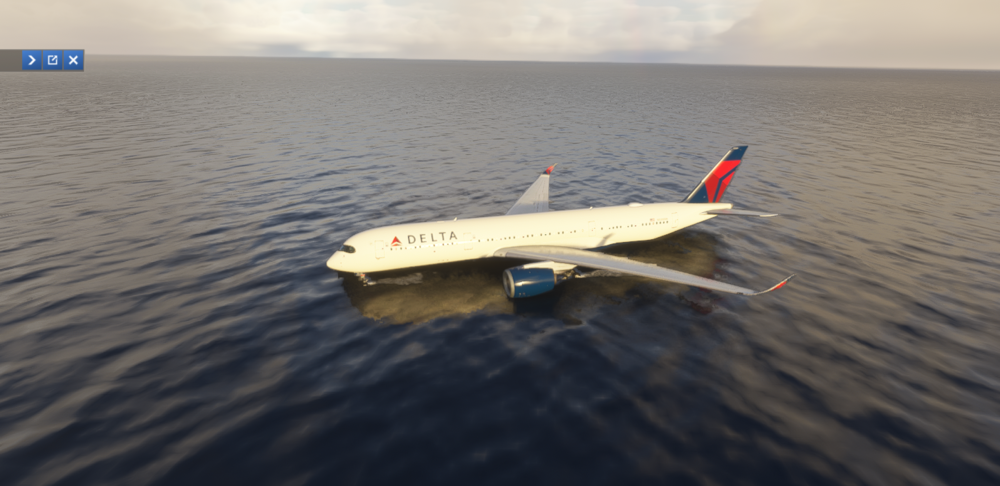
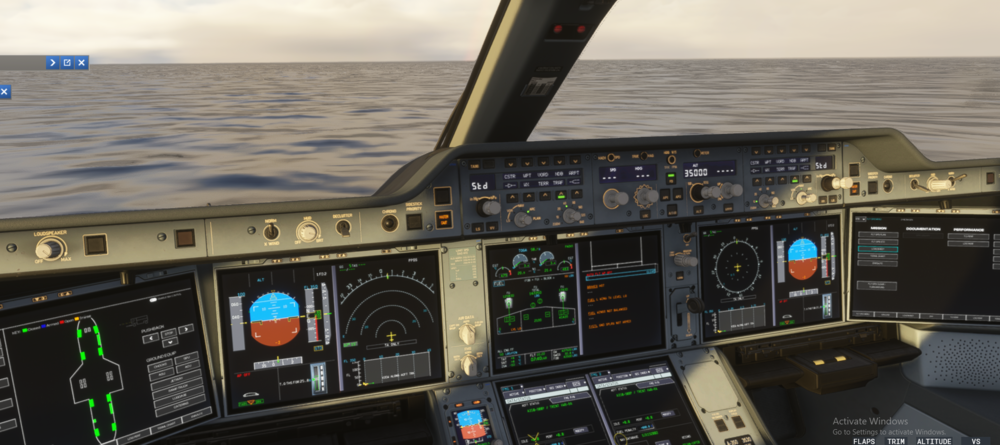
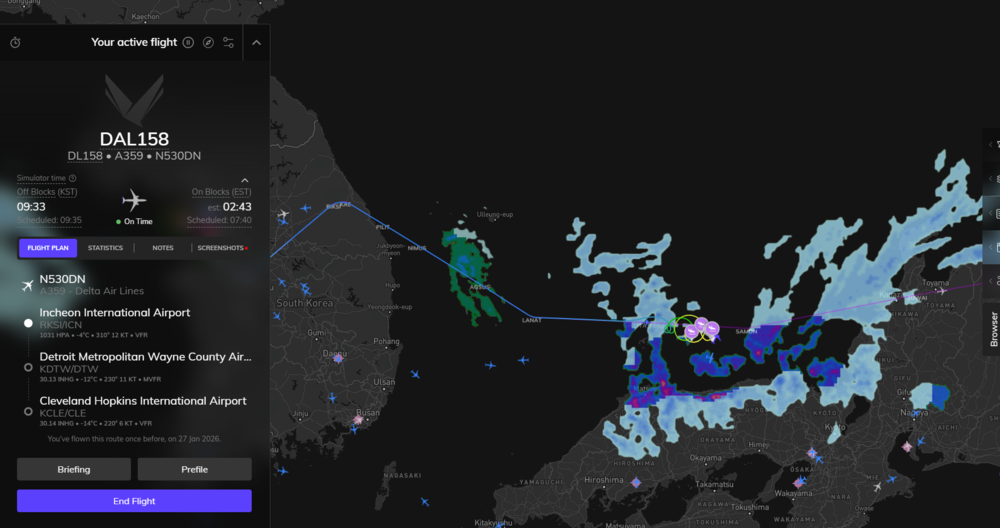
Anyway I managed to carry out my flight from RKSI to KDTW and got myself to cruise level. When I returned after 6 hrs of sleep I found this: I have so many questions but I dont know where to begin investigating lol BTW, there is no wasm as all buttons are clickable nothing seems frozen.
-
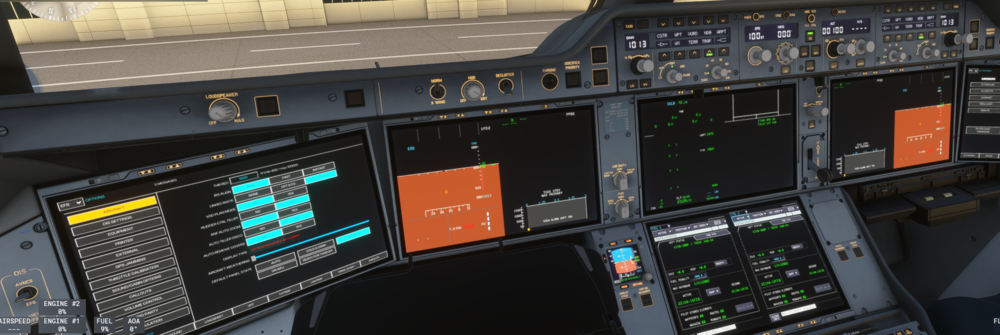
ok I think I seem to figure out the culprit. After each clean install or before starting up sim I would delete wasm folders. This time I kept wasm files and folders and the problem seems to have resolved.
-
Hi I have tried multiple clean reinstalls and tried different liviries but I am getting the same weird cockpit screen displays. I am using MSFS 2024 Delta livery. Custom cabins are uninstalled. Using default cabin. BTW earlier I had custom cabins installed and that had my cockpit missing altogether. I am not sure if the custom cabins have messed up some hidden files that I am unaware of. The version in use is v1.2.0 If anyone can help I would really appreciate it. Thank you
-
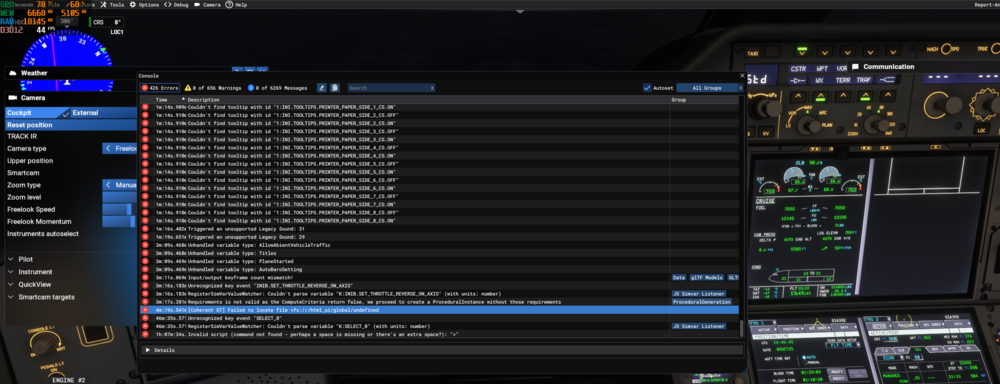
I am having the same issue. Its been going on with v1.1.5 and now with v1.1.6. Its not wasm error. Aircraft: A350-900 Simulator: FS2024 Navdata: Navigraph OFP: included Specs: CPU: Intel i5-13400, RTX 3060 Ti, 32gb RAM Autosave: Included I have also included screenshot of the error in console window 1760055156.bin WSSSLTFM_PDF_1760041392.pdf