




aidenbuch
Member
-
Joined
-
Last visited
Everything posted by aidenbuch
-
@Roders I have not tried since. Have you had a look at your WASM errors to see what the issue is, and reporting it? Check out the FAQ it’ll show you how to do it.
-
I assume this has nothing to do with inibuilds, and is something that winwing needs to sort out themselves.
-
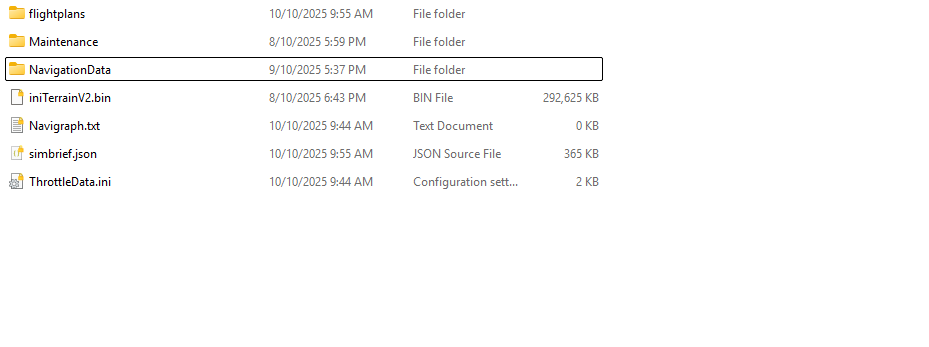
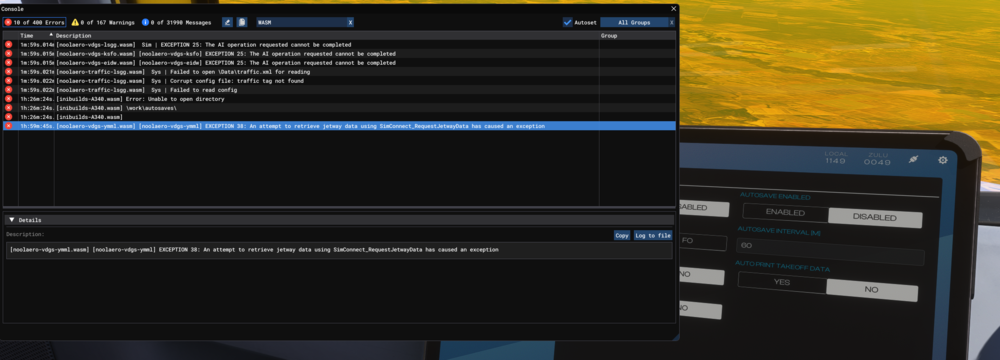
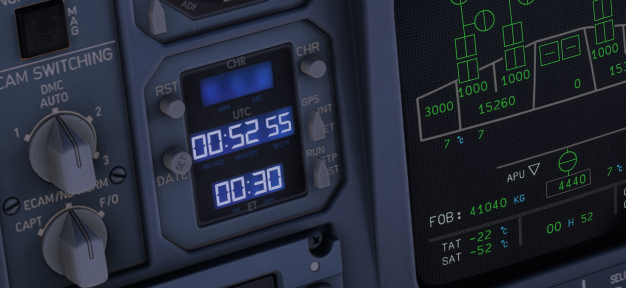
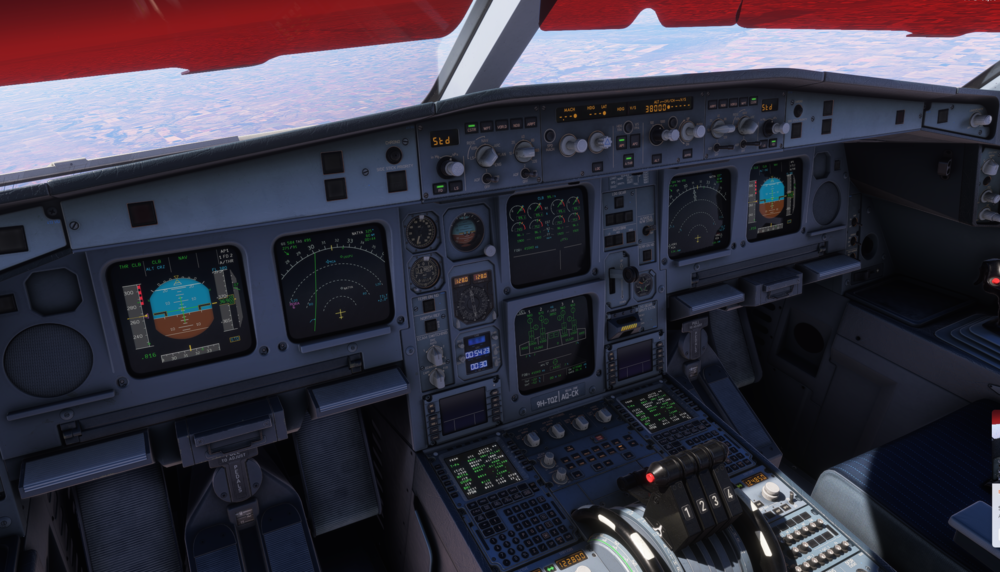
Got a WASM crash exactly at exactly 30 minutes on the chrono (related maybe idk). Autosave has never been enabled, no folder exsists, EFB says autosave interval (M) is 60. Clock remained ticking after WASM crash. No steps to reproduce, I was tabbed out of the sim for around 15 minutes before the occurrence. Aircraft: A340 EIS 1 Passenger Simulator: FS2024 Navdata Method: NAVIGRAPH OFP: NIL WASM Error: [inibuilds-A340.wasm] Error: Unable to open directory [inibuilds-A340.wasm] \work\autosaves\ [inibuilds-A340.wasm] Specs: 13th Gen Intel Core i7-13700KF. NVIDIA GeForce RTX 4070 Ti. 32GB RAM. Autosave File: NIL. Autosave has never been enabled since day 1 of having this aircraft, as seen in the screenshots.
-
Hello, As seen in the first preview, the GPWS selector switch has incorrect textures. It reads "FLPA OVRD" whereas the correct texturing is "FLAP OVRD" The second photo is a extract from an AIRBUS document on TAWS controls, and here is a link to the doc: https://abrapac2015.files.wordpress.com/2019/09/getting-to-gripps-with-surveilance.pdf


