




fmrtns
Member
-
Joined
-
Last visited
Everything posted by fmrtns
-
When I select the standard 233 it works both using GSX and inside the aircraft using the EFB. The 233L doesn't work either way, so I guess it's the same limitation affecting both situations
-
-
Thanks! Ive reported about this in RW profiles discord, they told me that some L/R stands don't have a jetway assigned and they only work on the main stands (msfs limitation) As for using the jetway button "JetBridge" on the EFB inside the aircraft (im using FBW A32NX), the jetway still doesn't move. The stairs do though
-
-
Hello, thanks for this beautiful scenery When I ask GSX to do the boarding, passengers are spawning just next to the plane. When I ask GSX to do the deboarding, passengers disappear after going down the stairs. I tried at least two different stands (W2 and W4). Thank you MSFS2024 GSX 3.9.5 latest inibuilds scenery version & latest gsx profile version
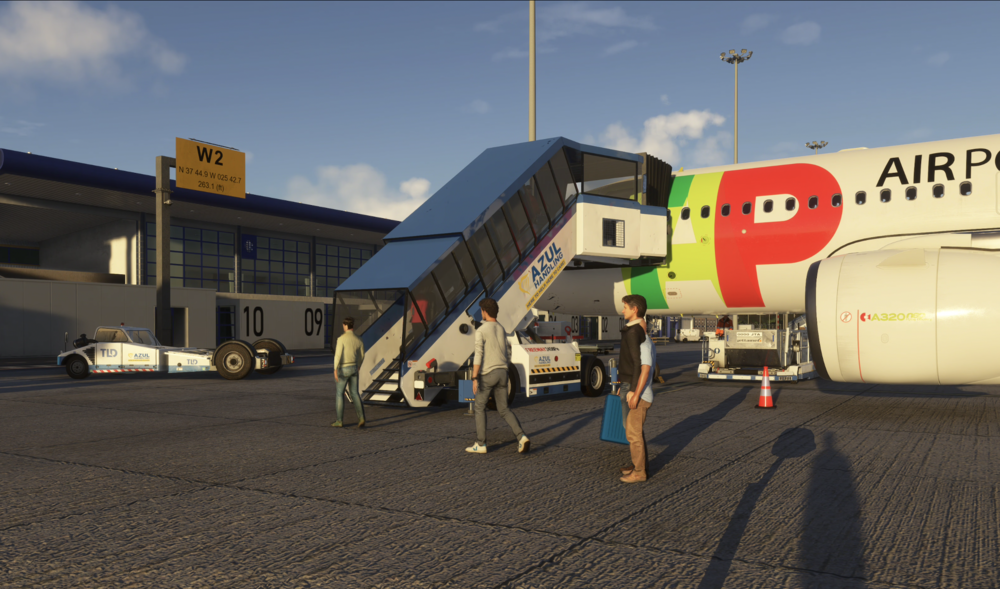
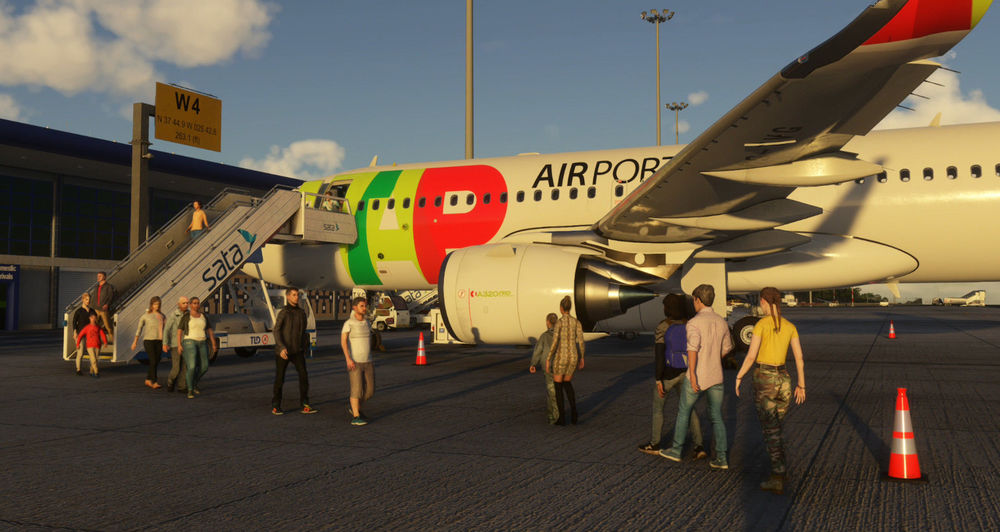
-
Hello, thank you so much for your work on this addon. I would like to ask you to take a look at the jetway at stand 233L, it doesn't work. Thank you MSFS 2024 GSX 3.9.5 Latest EGLL version & latest gsx profile (Please move this to the MSFS 2024 section, I mistakenly posted it in the 2020 section)


