




Rudilo80
Member
-
Joined
-
Last visited
-
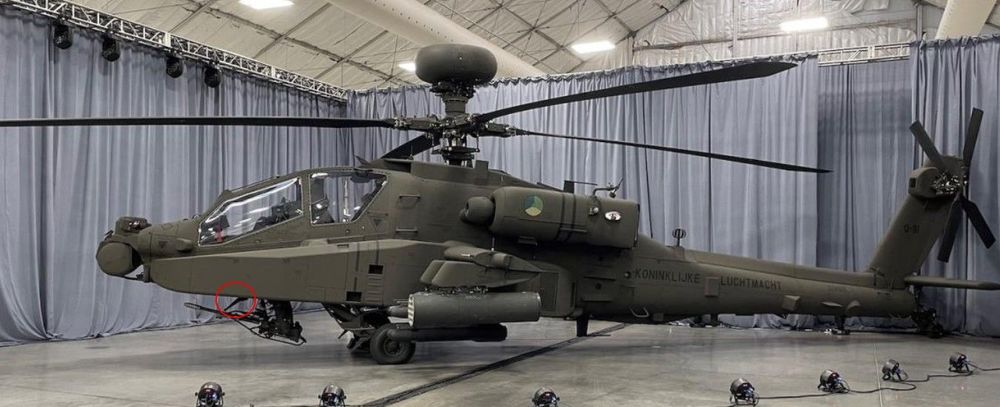
Hello Thank you very much for your feedback and your efforts. Please excuse me if I have not expressed myself correctly. English is not my native language 😉 I meant the wire cutter on the underside of the fuselage, which every Apache version has. Not the one on the cannon. It's just a small detail, but I think it's very much part of the Apache's appearance. Here is a picture of what I mean. 🙂 Here you can also see how the Apache is lower to the ground and the undercarriage looks more compressed. (probably due to the weight). Thank you very much for the review. Translated with DeepL.com (free version)
-
Dear KwikFlight Team First of all, thank you very much for the Hunter (Apache). I have been waiting so long for a nice version for the MSFS 2020 and 2024. I just have a few small suggestions for improvement: - please add the wire cutter on the bottom of the fuselage near the cannon - maybe it is possible to use a small EFB to show or hide different weapon payloads, “beautiful Apache pilots” and the longbow radar. Just like Taogs does with the UH-1 and the Lama, for example. - Can the landing gear be adjusted a little? I'm of the opinion that the Hunter should kneel more on the ground in cold and dark conditions - just my opinion ;) I hope you don't take this as criticism, but as a suggestion for improvement. I love the Hunter either way! :) Thanks for your great work!!! Translated with DeepL.com (free version)
