ROSSI ERIC
Member
-
Joined
-
Last visited
-
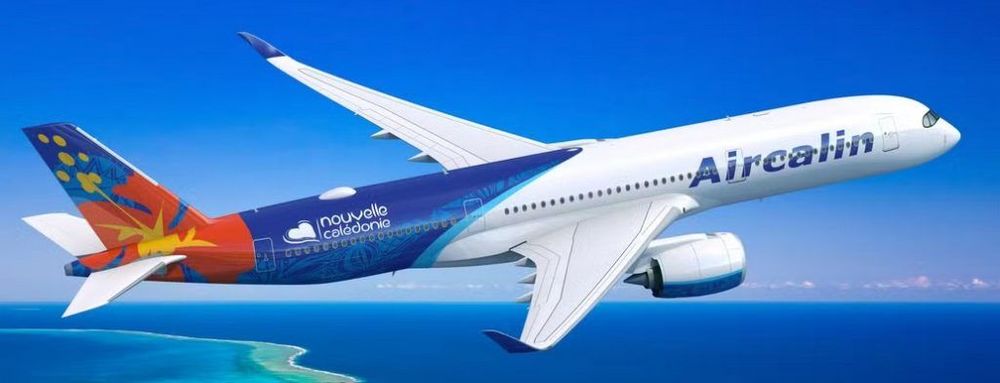
The registration could be: F-OSAM
-
The A350’s livery is expected to look like this.
-
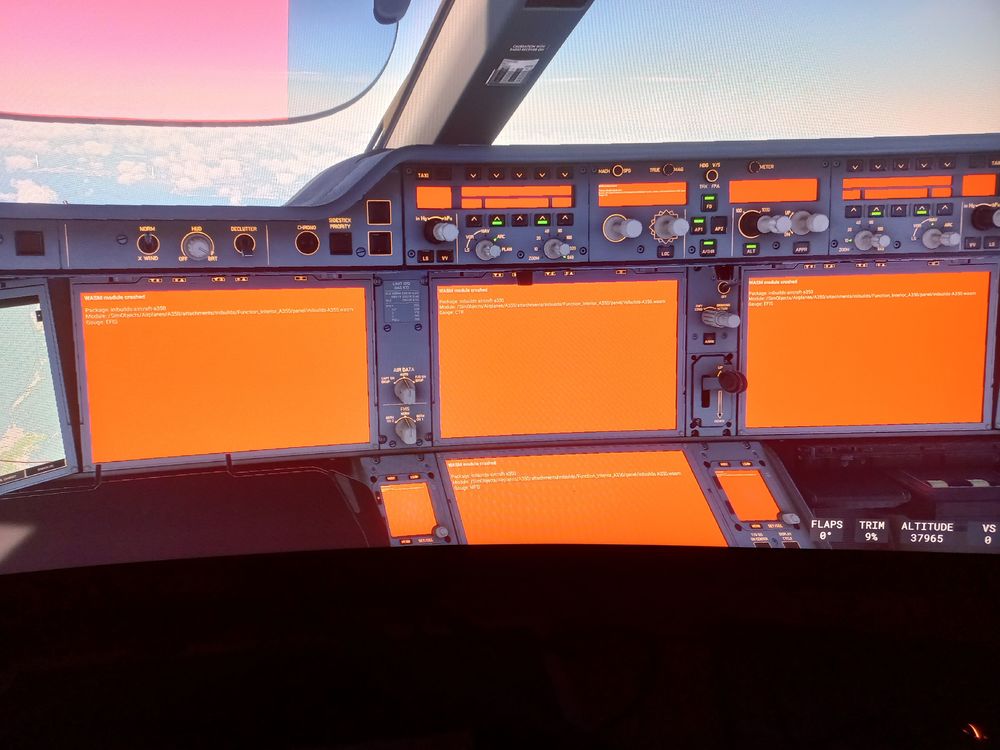
No, I do not have automatic saving enabled. The next day I tried to do a flight between VTBS and LFPG, and a second bug appeared after about 10 hours of flight: everything froze, it was impossible to disconnect the autopilot, etc. I only had engine sound and ATC still working. The aircraft was no longer following the flight plan. For your information, I had not activated FSLTL. I was forced to use (Alt + Del) to quit the game. The following day I repeated the same flight and this time it worked. I was wondering whether the problem really came from the A350 or from MSFS 2024.
-
Hello, after 8 hours and 15 minutes of flight between NWWW and VTBS, this bug appeared. I had never experienced this issue before. I have 561 hours with your A350 on MSFS 2024. I performed an update of the FSLTL Traffic Injector just before the flight. Note that after stopping everything and restarting the game, everything worked normally again. Do you have any idea what might be causing this issue ? Thank you very much.
-
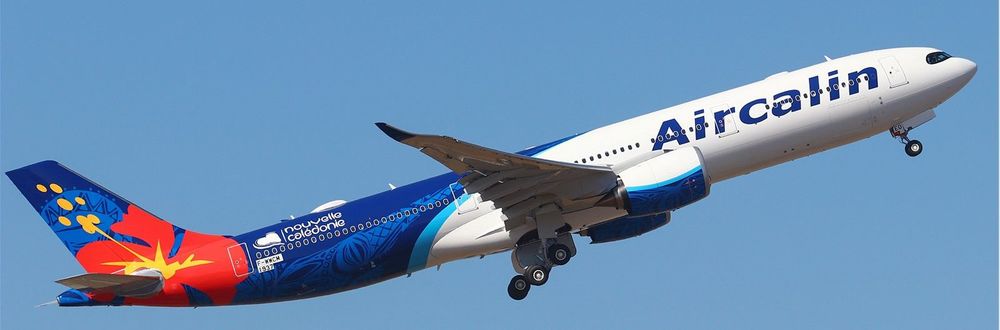
I have owned the Airbus A350 almost since its release, and I think iniBuilds has done a magnificent job. However, I have a request: our regional airline, Aircalin, based in New Caledonia, is expected to receive its first A350-900 in 2026. Would it be possible to obtain a livery for this aircraft? I am using MSFS 2024. You will find attached the current livery of our A330neo as a reference model. Thank you very much.