thevirtualpilot
Member
-
Joined
-
Last visited
Everything posted by thevirtualpilot
-
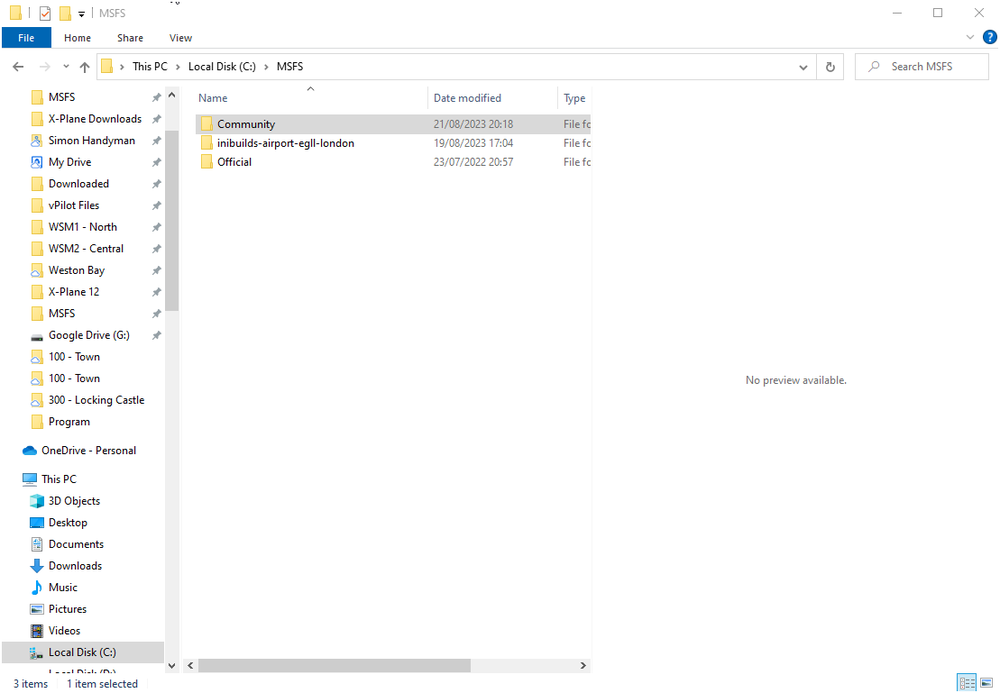
Thank you. That's worked. Can I just delete the folder that's in the wrong place? Or do I need to go through the Uninstall procedure for that path?
-
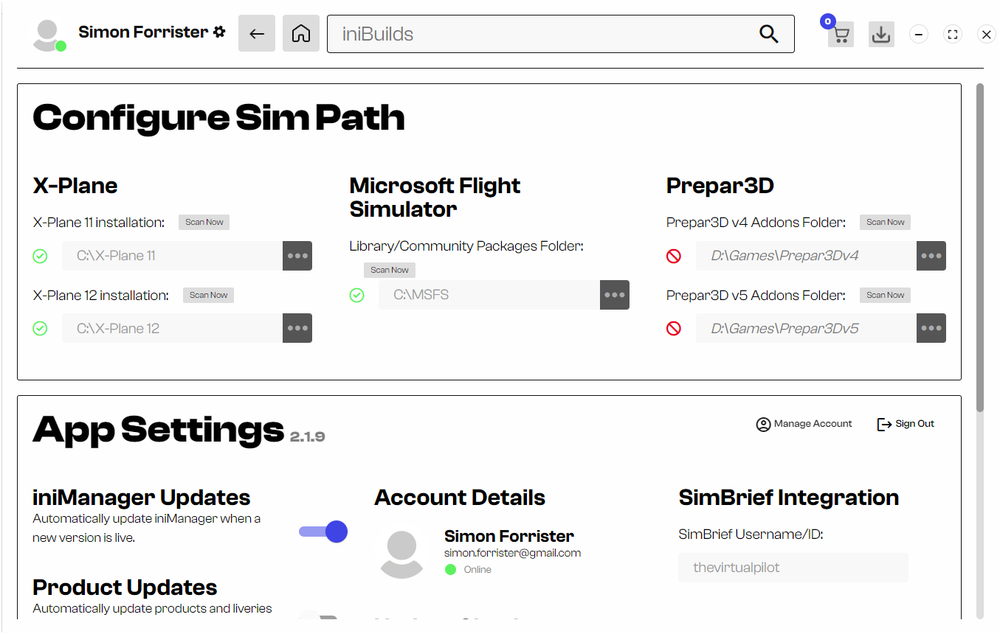
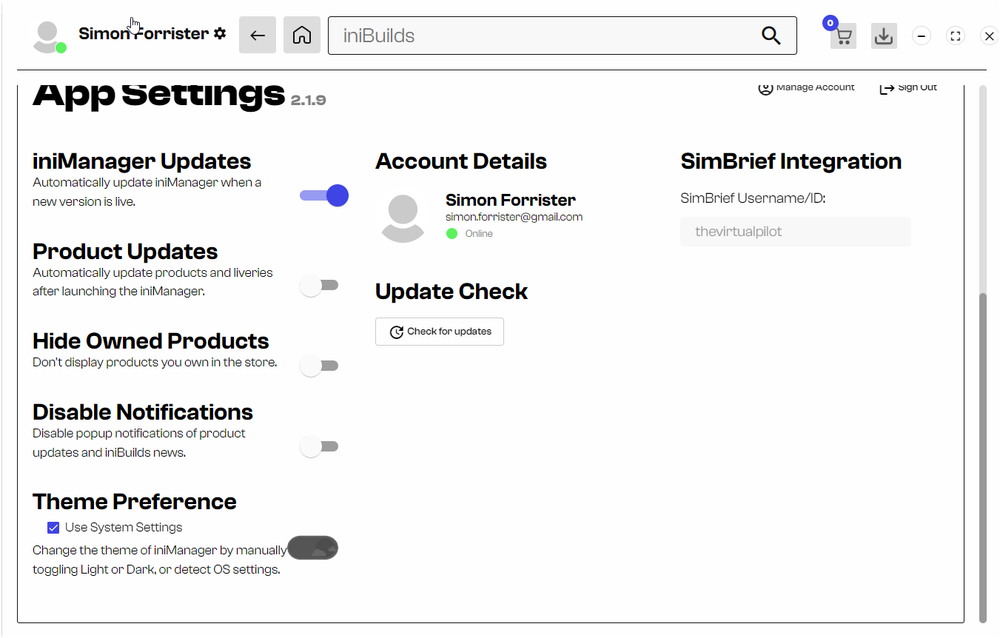
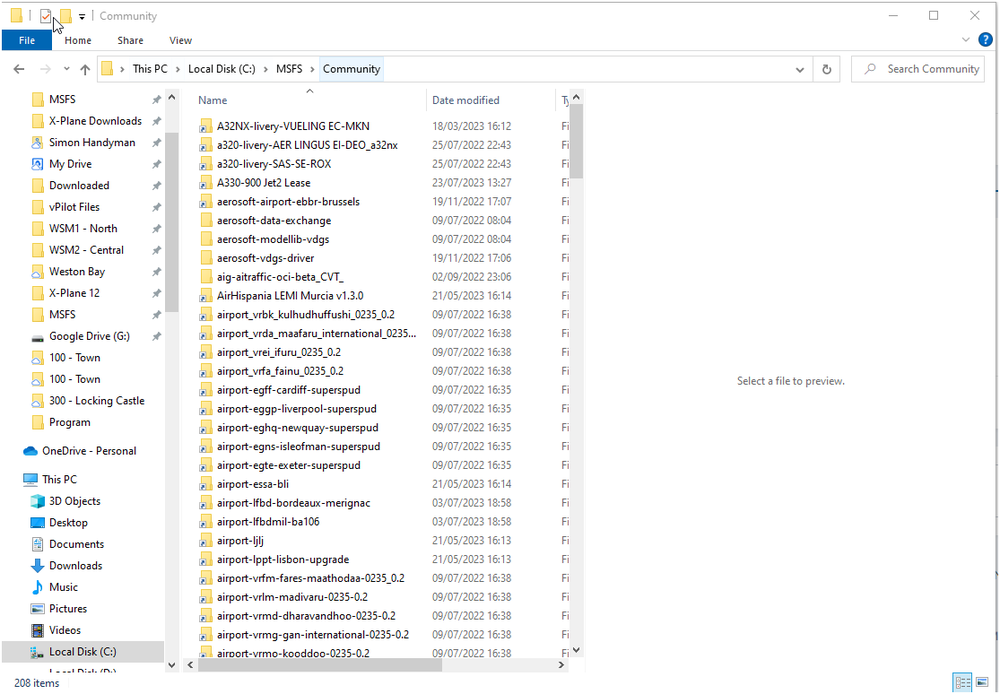
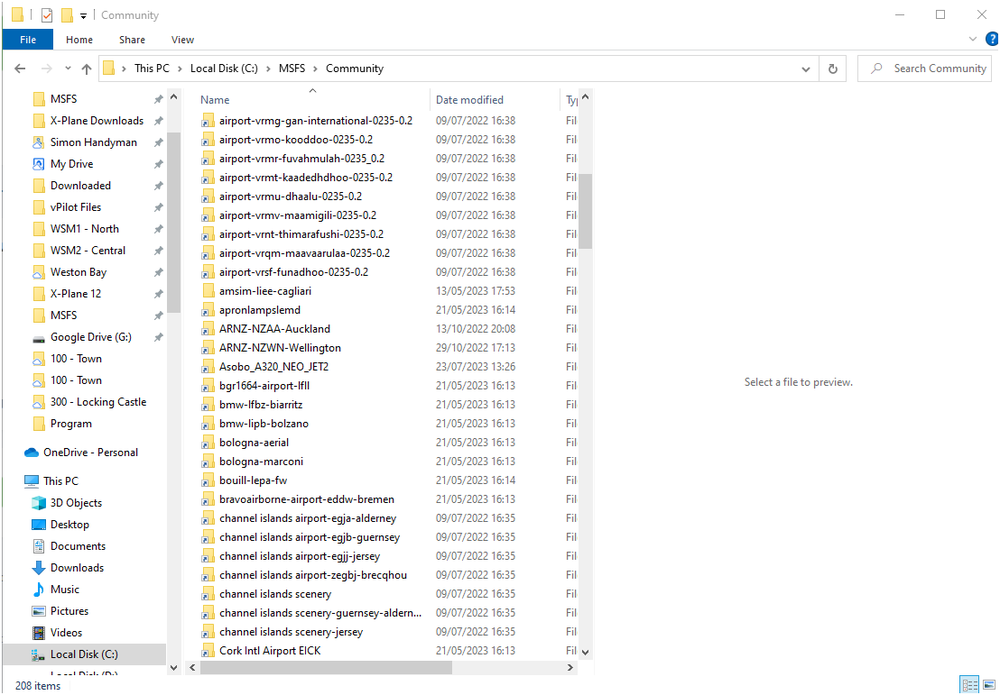
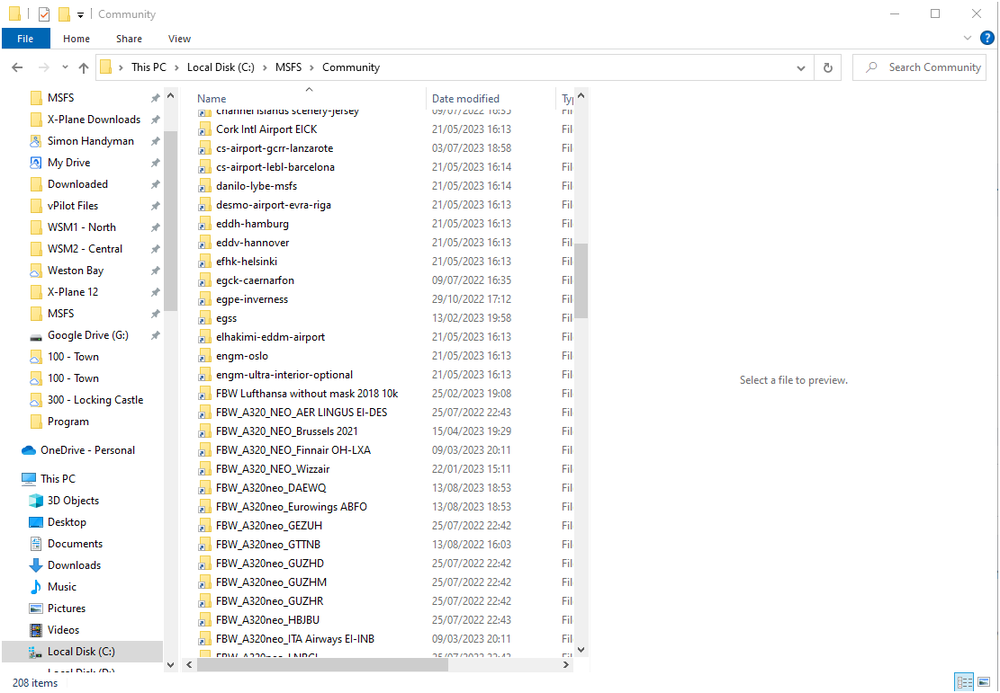
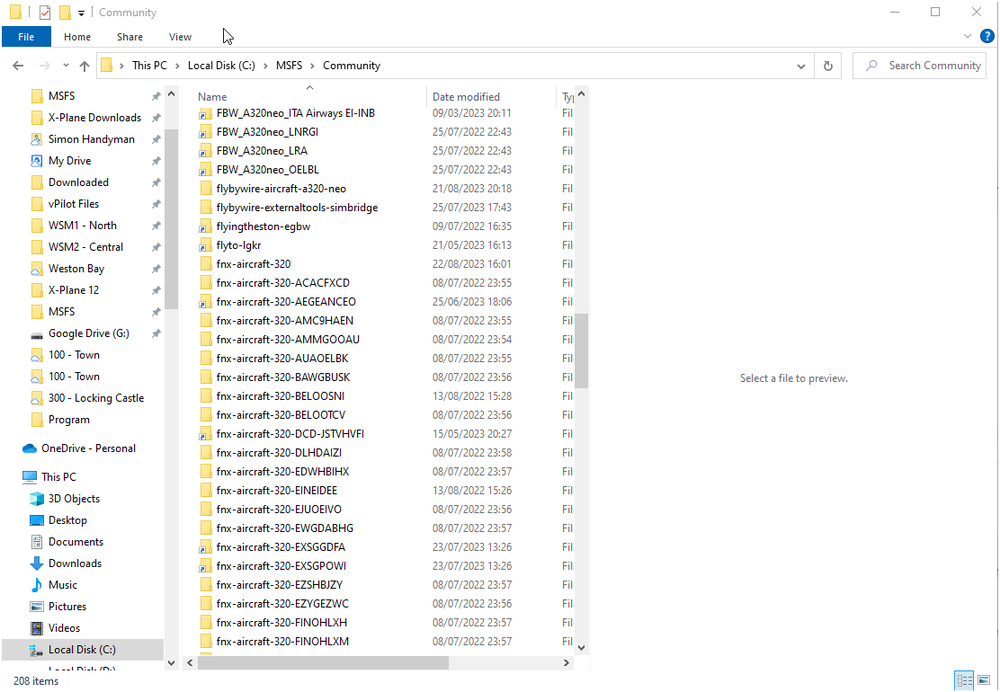
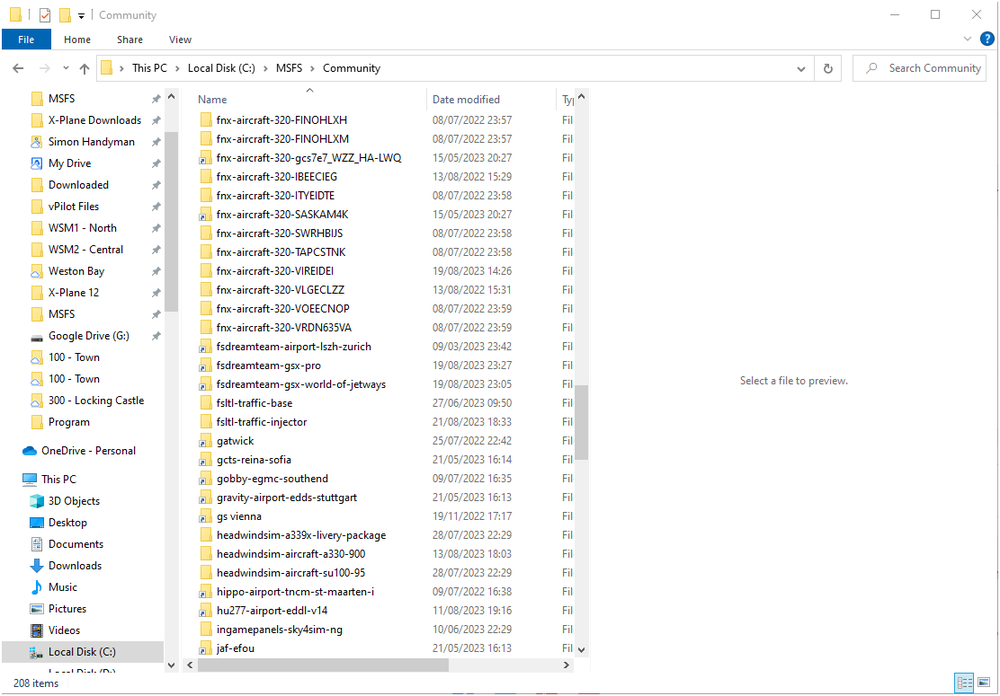
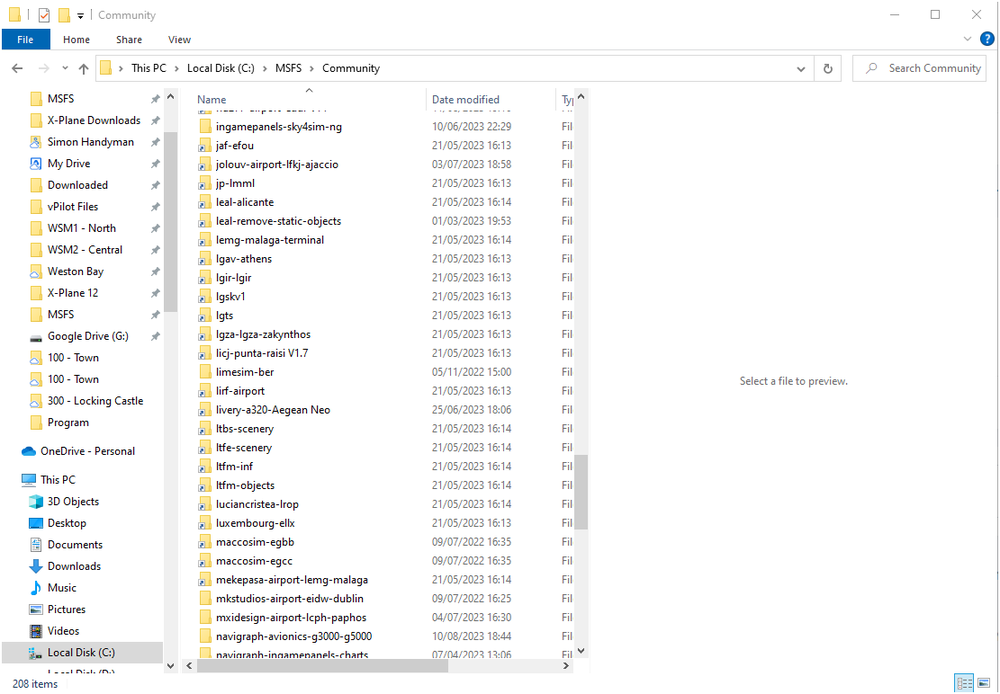
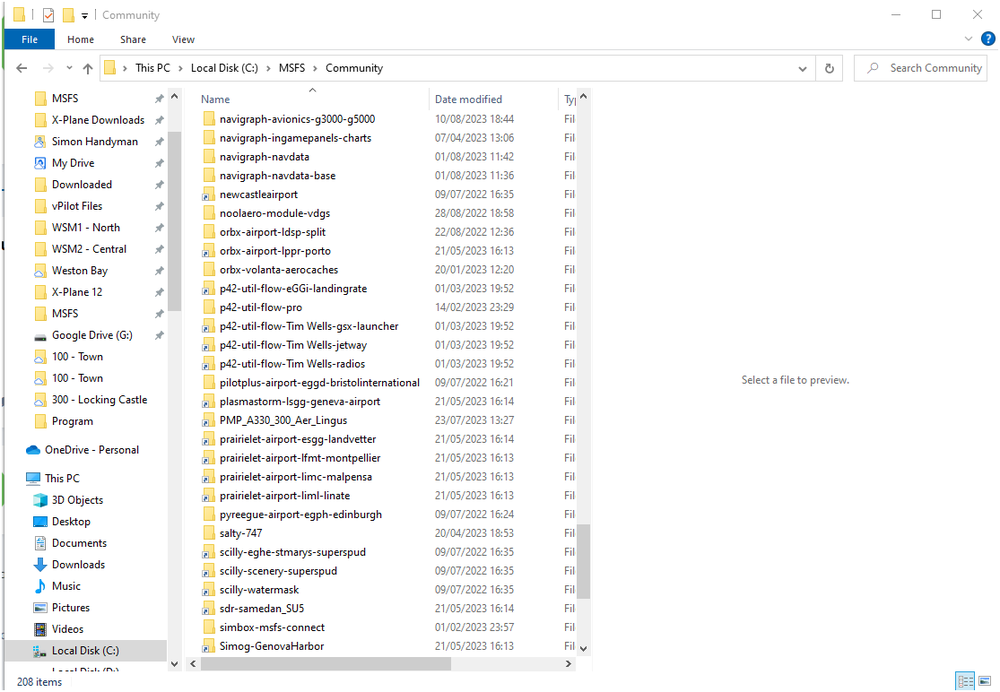
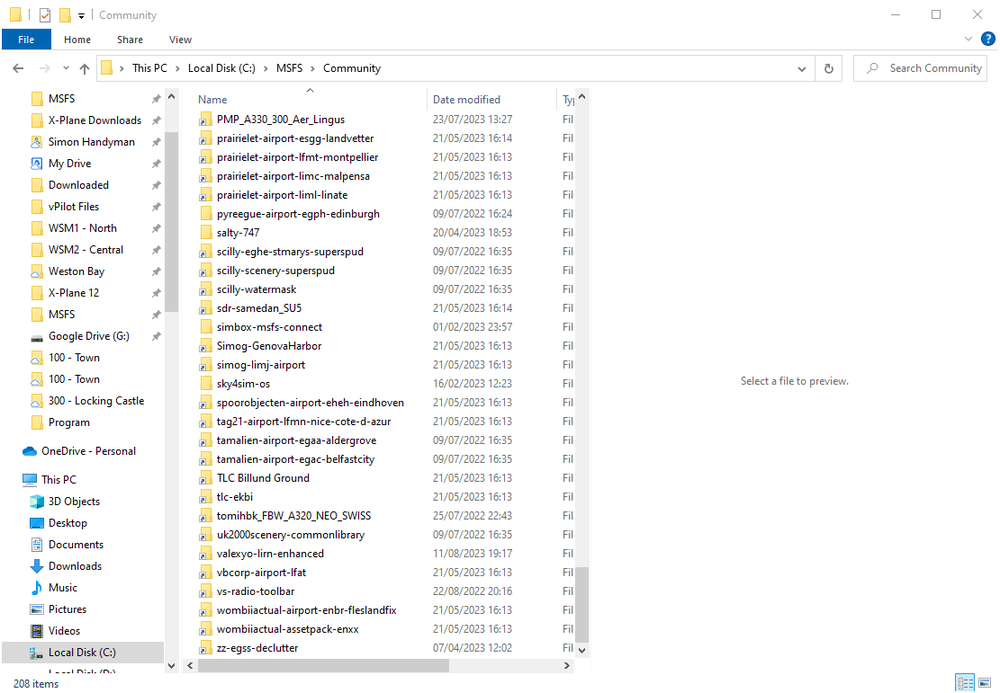
Please see the requested... I also noticed when checking, the 'iniBuilds-airport-egll-london' folder is not in the Community folder. Could this be the reason why?
-
Checked twice - No - it's not showing up there. Searched for EGLL and all that comes up is Asobo's. So I manually scrolled to check and nothing.
-
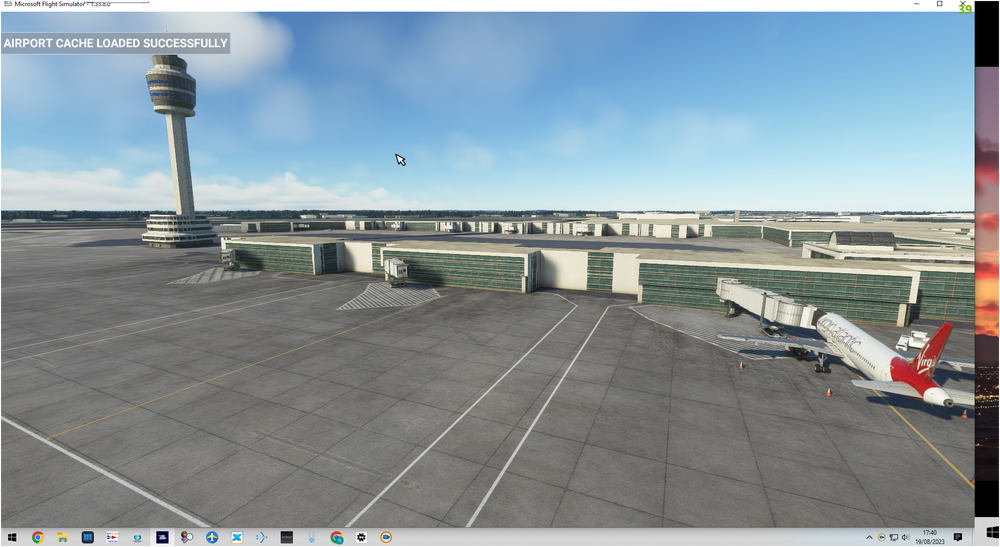
I've just purchased EGLL v3 via the iniBuilds app, downloaded and installed - settled my Fenix 320 at a gate - scenery showed no markings, gate numbers etc. Viewed outside and scenery did not look right - looked like the Premium Deluxe version which I originally had. Closed MSFS - removed EGLL from Content Manager, then re-started. Looked worse. Decided to uninstall EGLLv3, delete scenery indexes (from SceneryIndexes folder) - reboot, re-install EGLLv3 and try again. This is what I've got: I'm pretty sure that's not what I should have... What am I doing wrong?