linmar22
Member
-
Joined
-
Last visited
Everything posted by linmar22
-
The way you implemented the EFB, via the "microsoft-aircraft-a310-300\html_ui\Pages\VCockpit\Instruments" structure, means that efb.js can be slightly altered to pipe the rendered view to a web socket. Some of the other, aforementioned planes that expose their MCDU or EFB do it this manner. This project, for example pipes the CJ4's (WT) FMC to a node server that hosts it. This is a fairly crude example, compared to some of the others. The FBW A320, for example, ships with this functionality.
-
Interesting. Could still probably pipe the rendered result into an Lvar of some sort, no? Or maybe pipe the rendered result out from the WASM side back to the JS/TS side and expose it there. Your EFB, for example, is compatible. Seems strange that both, Asobo and third-party planes can do this, but it's impossible in this one...
-
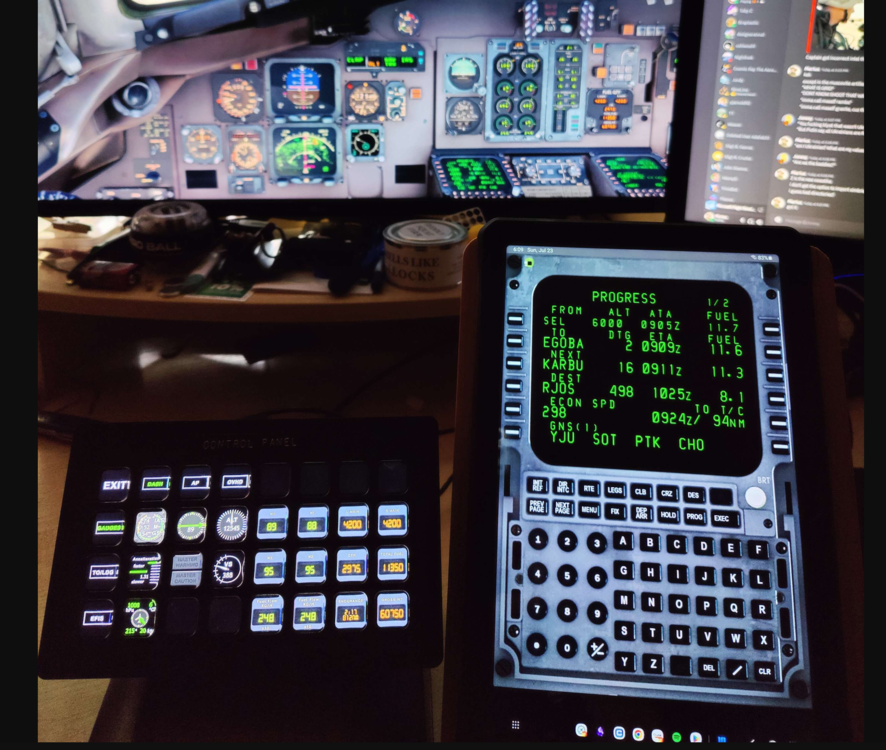
Any way (or plans) to expose the MCDU via web server like we see on the FBW A320, PMDG 737, LSH MD-82...? It really adds to the immersion and usability when the MCDU can be interacted with via a physical tablet. At the very least make it "moddable" so we can expose it ourselves? Here's what it looks like in the MD-82... Other planes with this capability include the Asobo 787/747, WT CJ4, FSS E-Jets, Azurpoly C-160, DCD Concorde, Aerosoft CRJ, and the JustFlight 146.