Crazydoc
Member
-
Joined
-
Last visited
Everything posted by Crazydoc
-
As far as I am aware, the MSFS beta program only covers Sim Updates (SU). There is no such program for World Updates; thus, 3rd party developers (e.g., iniBuilds) in general are not going to see how the WU affects their scenery (or vice versa) until the update comes out. I don't fault anyone for the incompatibilities that came out of the woodwork with the new update...these things happen, and I have no doubt that they will be addressed in due course.
-
I've seen that as well. The ground color and texture difference between the airport and surroundings is very noticeable in places.
-
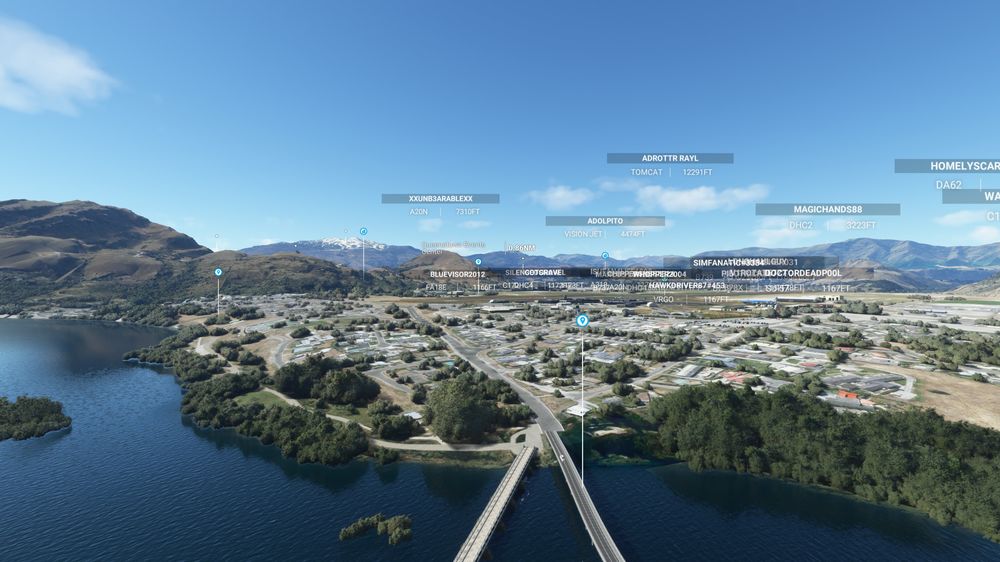
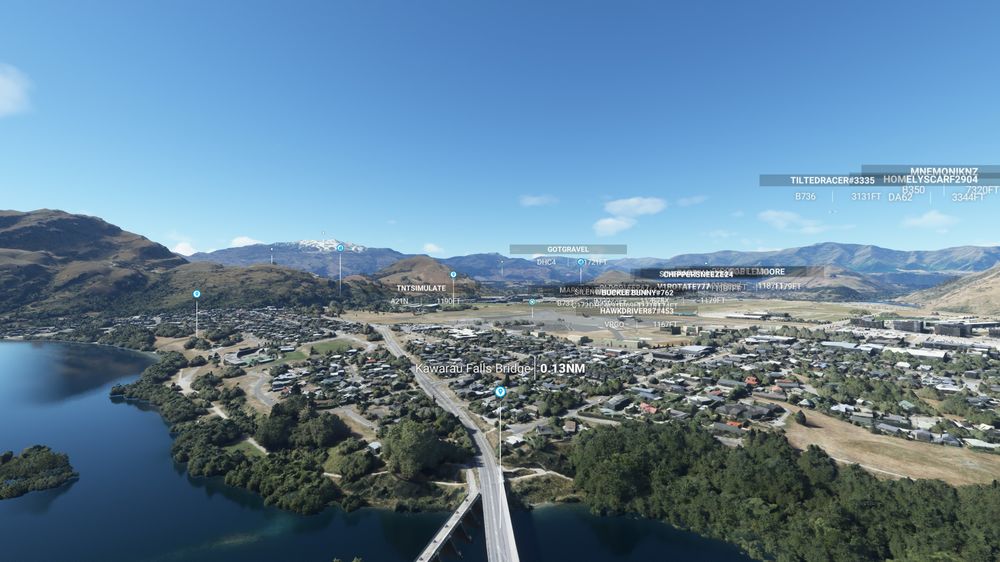
Good evening, First off, thank you to the developers at iniBuilds for all your hard work and passion for the sceneries you create. I own several of your sceneries for MSFS, and I think they are amongst the best you can buy. NZQN - Queenstown is no exception. That said, I need to mention that the iniBuilds NZQN scenery interferes somehow with the new photogrammetry for Queenstown in the MSFS New Zealand World Update. When I have iniBuilds NZQN enabled, a lot of the Queenstown 3d buildings vanish, making for a flat scenery; also, the elevation at the Skyline Queenstown landmark is messed up to where it really messes with the landmark. When the iniBuilds scenery is disabled, the 3d buildings return and the Skyline Queenstown landmark looks as it should. Just thought that y'all should be made aware so that hopefully a compatibility update can be created. Thanks again for all you do for flight simming! -Crazydoc