




NOSRHUTTLE97
Member
-
Joined
-
Last visited
-
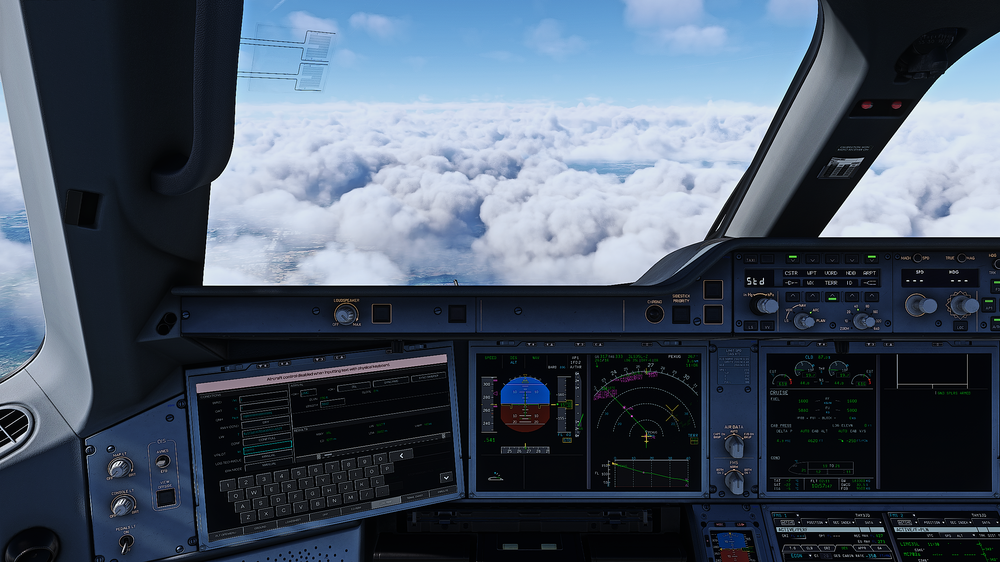
Hi. Loving the 350 so far in FS20. I have encountered a rather annoying issue regarding how keyboard input on the OIS works. I use | to switch to external view, and TAB to switch to drone. Ive mapped 1, 2, 3, 4, etc. as my camera views. IF Im on a page on the OIS that you can write on, eg LD PRF, and I quickly go into either a wingview (using 1,2,3,4 etc.) or drone, the camera completely freezes. Sim is running and I can pause. I believe it has something to do with the keyboard input, pausing the sims assigned actions. See attached screenshot. However, I cannot seem to find any workaround to fix this. The only "fix" is to RESET POSITION on the camera settings, and only be at the FLT OPS MENU when doing drone, wings or external (which I find not very userfriendly) I hope Ive explained the issue OK, its very frustrating to work with!
-
NOSRHUTTLE97 changed their profile photo
-
I mean, what a treat Inibuilds has been to the XP-community lately. The A300 is easily the best and most intuitive addon for the sim at the moment. Then they bring out the ever so amazing Beluga, propped with cool features that really gets the immersion going, and now the A310. Seeing all the various engine types, aiframe configurations and what types of operations you could do, I dont think anyone here would have any difficulty in saying Inibuilds leads the race. Yet another upcoming addon I will purchase instantly, and keep me engaged in XP11 for the coming years. Solid!


