




Bastlwastl
Member
-
Joined
-
Last visited
-
Ok, thank you for explaining it 👍
-
Oh sorry, it is indeed the 2024-Version, i just put it in the wrong section. You can also move the topic if you want. But anyway, when "On GPU" is selected in the normal panel state selection, the aicraft is actually "on", while on the default "On Gpu"-state, the gpu is just connected with the aircraft cold & dark. So theese two identical settings have two different meanings then, is this really intended to be like this? Thank you!
-
Hi @iniKyle , thank you for your answer and the explanation, but i am a little confused here. What is the difference then between "Cold & Dark" and "On GPU" in the "Default Panel State"-selection here: Because, when i select "On Gpu" in the normal panel state selection, the cockpit comes to live etc., with "Cold & Dark" however, it it (as it should be, obviously) cold & dark, but also with the gpu connected.
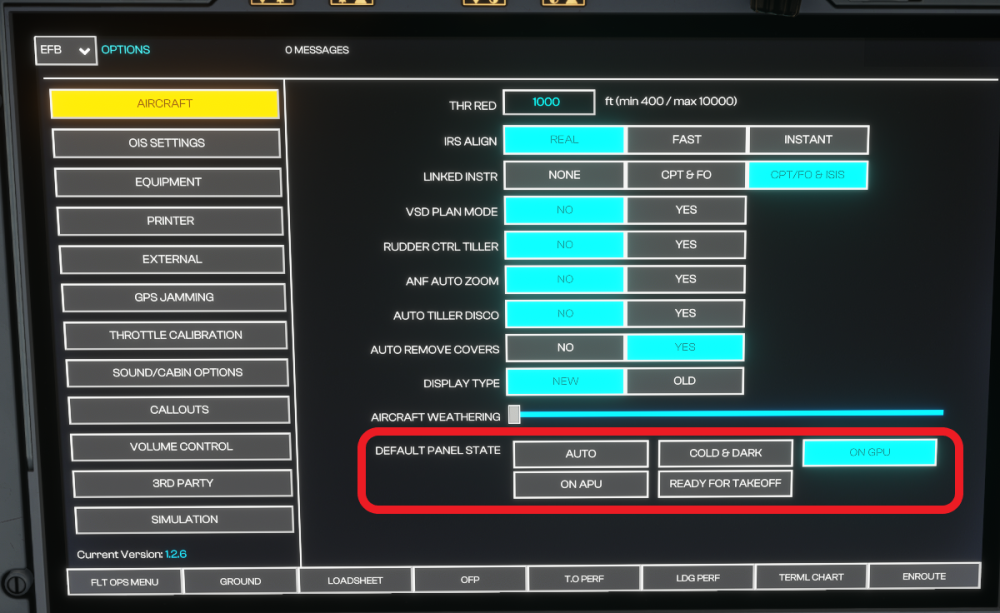
-
Hey there, i tried to set my default panel state to "On GPU" it is also shown blue in the OIS, but the aircraft remains in a cold & dark state. Is this a known bug or can i do something to fix this? Thank you! I a am on latest Version 1.2.6 Thank you!
