Riciu Catalin
Member
-
Joined
-
Last visited
-
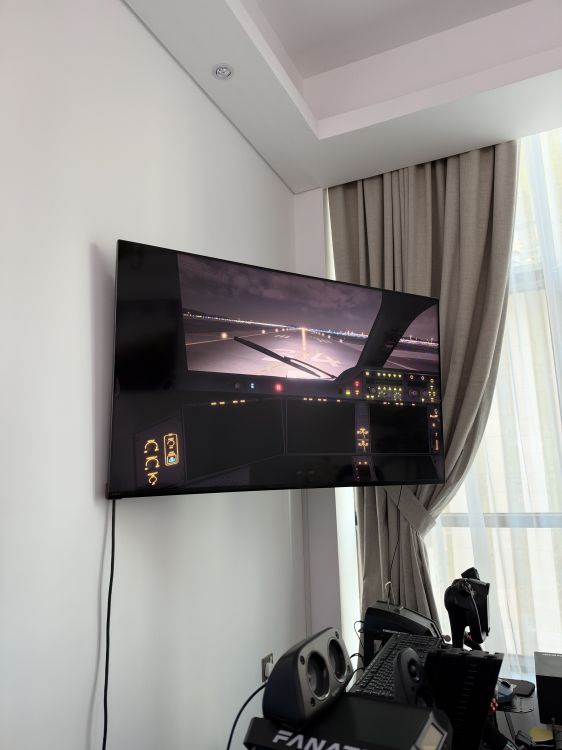
Subject: A350 after v1.2.7 update – old OIS saves cause black cockpit displays, new save loads correctly (MSFS 2024 Steam) After updating my iniBuilds A350 today, my existing OIS custom saves no longer load correctly. The update I intended to install was v1.2.7; I can provide a screenshot of the installed version if needed. Platform: Microsoft Flight Simulator 2024, Steam, Windows PC. Before loading a save, the aircraft and cockpit displays work normally. As soon as I load either of my two older custom saves (PURPA and my Incheon–Doha save), the main cockpit displays turn black and an unusual sound is heard. The displays do not recover after waiting. PURPA previously loaded successfully before the update. Tests completed: Restarted the flight/simulator and loaded from a functioning A350 cockpit. Created a new custom save named “test” after the update; this loads successfully. Backed up the current autosaves folder separately, including “test”. With the simulator closed, restored the two older .bin saves from a separate backup made before the update, replacing only their corresponding files. Retested both old saves; the same black-display problem remains. I have kept both backups and have not cleared the WASM folder or reinstalled the aircraft. Are custom saves from the previous version compatible with v1.2.7? Is there a supported way to recover these saved states or at least extract their FMS routes? Please advise the next diagnostic steps before I reset any aircraft data. I can provide the affected .bin files, the working new test save and a screenshot for comparison. Thank you, Catalin