Alexis.B
Member
-
Joined
-
Last visited
Everything posted by Alexis.B
-
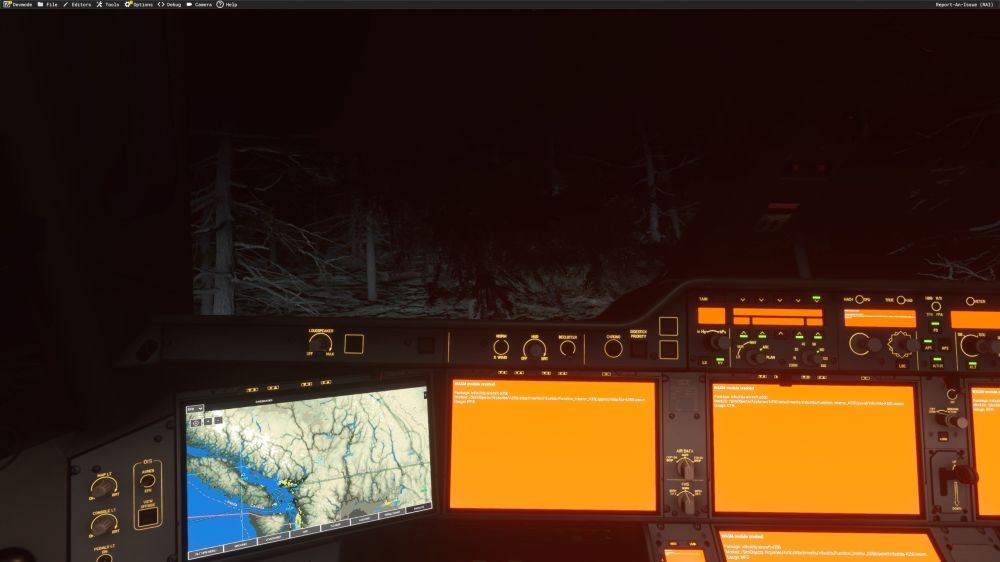
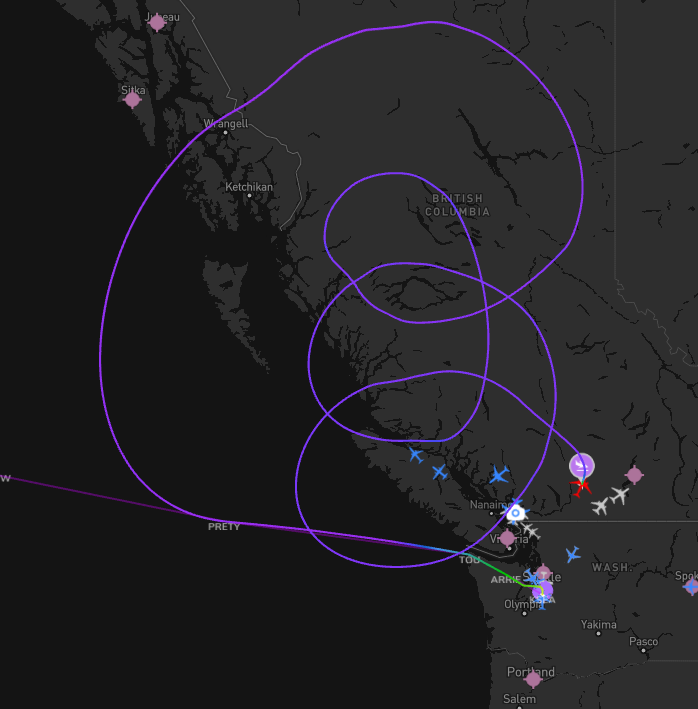
Aircraft: A350-900 Simulator: FS2024 Navdata Method: Navigraph OFP: PFD WASM Error: Unfortunately, I’ve already closed FS2024 and don’t have a screenshot of the developer mode console, but judging by the aircraft's gauges, it appears to be the EFIS. The crash occurred about an hour and a half after takeoff from KSEA. I’ve attached my flight plan and the save file. Specs: R7 9800X3D, RTX5070Ti, 64Gb RAM, Windows version : 25H2, NVIDIA pilote version : 616.56 KSEAZSPD_PDF_1789507196.0c3c3576.pdf 1789511212.bin
-
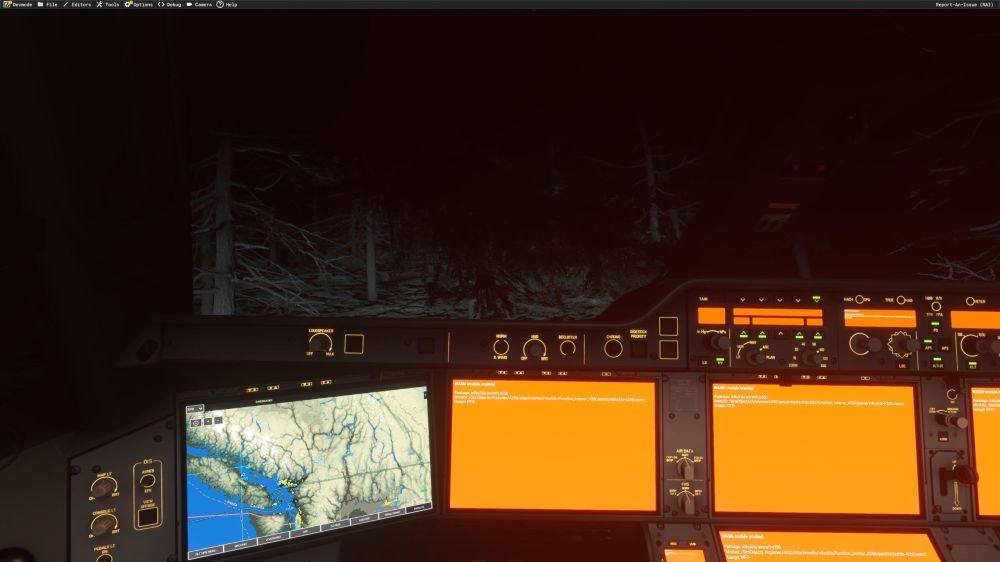
I really want to express my frustration with this situation. I started my KSEA > ZSPD flight last night around 11 PM (French time) at the controls of the iniBuilds A350. I simply wanted to give MSFS 2024 another chance. MSFS 2024's performance has long been disappointing, despite my high-end setup. Recently, I decided to give it another go, and for the first time in a while, I was starting to believe I would finally enjoy the simulator. Performance was solid. The flight was going beautifully. And then, while I was asleep about an hour and a half after takeoff, according to the flight tracking data....the WASM module crashed. When I woke up, I found several orange screens in the A350 cockpit and discovered that the plane had crashed. It is incredibly frustrating. This is an aircraft that costs around €70, on top of an already very expensive simulator. Some users have spent far more on the various editions of MSFS 2024 and on additional content. Many of us have also invested hundreds of euros in aircraft, scenery, and other add-ons. At some point, we have the right to expect these products to be truly usable for their intended purpose: flying. I can accept the occasional bug. I can accept a crash-to-desktop (CTD) now and then. I can even accept having to work around a few minor issues. What I find very hard to accept is spending hours preparing a long-haul flight, seeing everything work perfectly, going to bed, and waking up to find that the aircraft's systems have crashed due to a WASM issue. It is all the more frustrating because I was actively trying to give MSFS 2024 another chance. I had largely set it aside for a while due to the performance and ground texture (LOD) issues I was encountering, and I was finally starting to think that, with the right settings and tools, I could enjoy it again. The WASM crash completely ruined that experience. It is important to understand that this isn't just about a failed flight; it is a matter of trust in the product. When I start a flight lasting over 12 hours, I need to be able to reasonably expect the aircraft to still be operational when I wake up. I sincerely hope this issue is being treated as a top priority. Whatever the underlying cause....WASM, SimConnect, memory management, interaction with other systems, or something else action must be taken. I don't want to give up on the A350 or abandon MSFS 2024. But after encountering this problem time and again, it is becoming increasingly difficult to justify using an aircraft that is liable to lose its cockpit systems in the middle of a long-haul flight. Please, iniBuilds, take this issue seriously and keep the community informed about the steps being taken to resolve it. We paid a premium price for these products. We should be able to use them for flying.