




David Rendon
Member
-
Joined
-
Last visited
-
It takes time ,I did a video on my outcome and you just have to go one folder at a time. I suggest, as Kyle advised to remove everything out of the community folder. I de installed the A350, with everything out of the community folder I re installed the a350 and only added the 2 scenery locations I was going and did a flight. No crashes or freezes. I continued by adding scenery after scenery with no issues. I added IVOA and FSLTL and no crashes... then I added 1 make of airplanes at a time, so I first added all of the Fenix airplanes. NO crashes... Then PMDG the same and what ever planes I had left,no crashes... Finally, I had my skalarki overhead and this was it,it crashed and froze. I had to get with skalarki but with an upgraded program ... no crashes and no issues to report.... When you first load up with the a350 depending on your computer, it might take 10, 15or 20 mins to load. I hope this helps you out !
-
Ok team, finally after going through and adding things 1 by one , it was a program that was causing the issue... it took forever but I have been doing several test flights and last night I did the final test of 10 hours, Miami to London. I appreciate the help and I hope the videos helps others
-
-
-
-
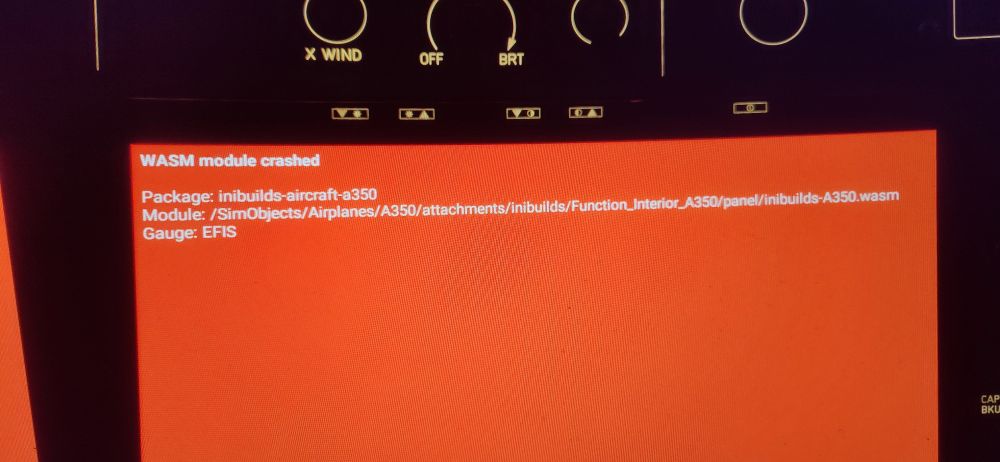
Hello Team, So removing everything out of the community folder and leaving FSTl model matching , a350, 1 livery of delta, and 4 sceneries , the plane finally loaded at 100 to 108 fps no stutters. Prior to loading, I did a clean de install and re install. Cleared wasm, rolling cache. Now, right when I was putting my info take off numbers,I hit the button to sync and I got a wasm crash... ughhhh
-
Hello thats not the issue I bought my computer from micro center and I had their support team log in and check to ensure, its the 350 and I see in the forums a lot of people complaining of the same thing I have advised. I already removed everything from the custom folder and left only the a350 later I will try a flight and see if it doesnt freeze. As I said in my previous post, I am getting in the high 90 in fps for all planes including, being at ATL . I really do appreciate all of the feedback, hopefully this works
-
-
-
Dear iniBuilds Support Team, I recently purchased the iniBuilds A350 for Microsoft Flight Simulator 2024, but I continue to experience system freezing and crashes whenever I use the aircraft. So far, I have completed the following troubleshooting steps: * Removed the WASM folder. * Cleared the Airbus-related folder from the MSFS 2024 Community folder. * Uninstalled and reinstalled the A350 through the iniManager. * Cleared and reinstalled the aircraft files. My computer specifications are: * NVIDIA GeForce RTX 4090 * Intel Core i9 processor * 64 GB RAM * Microsoft Flight Simulator 2024 I do not experience freezing or crashing with any other aircraft. The problem appears to occur only when using the iniBuilds A350. I have also asked other flight-simulation users about this issue. Some have reported experiencing similar problems with the A350, while others have not encountered any issues. Could you please let me know if I am missing a required setting, update, dependency, or troubleshooting step? I would greatly appreciate your assistance in identifying and resolving the problem. Please let me know if you need my crash reports, Microsoft Flight Simulator logs, inbuilds logs, or any additional system information. The Picture attached is me showing the sim frozen at 31 fps, when i fly fenix a320 i am getting around 90 to 103 fps Thank you for your assistance. Respectfully, David Rendon

