Matt D
Member
-
Joined
-
Last visited
-
Following on from above 15 min after the above WASM crash: I removed Inibuild Hamad Doha scenery. (the only thing that had changed in the last two weeks. I'd never had a WASM failure after many any flights before. I replicated exactly the same steps for departure. A350 returned to normal. No WASM on preflight. Normal departure and cruise. The only factor was the inibuilds Doha scenery.
-
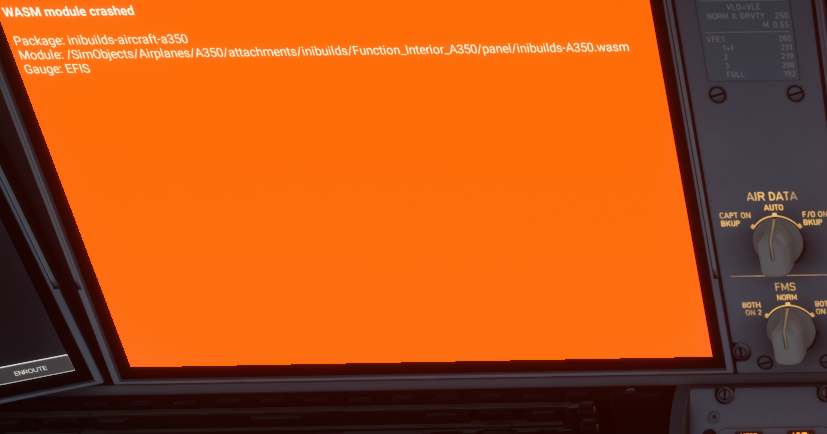
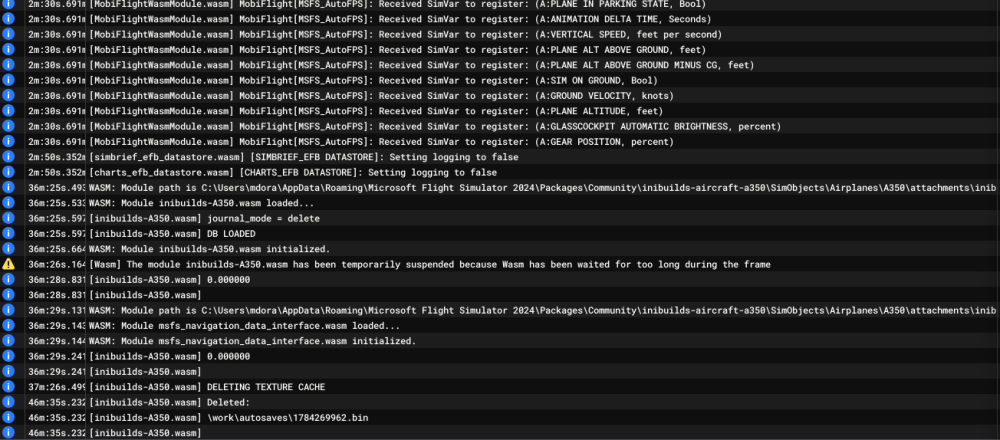
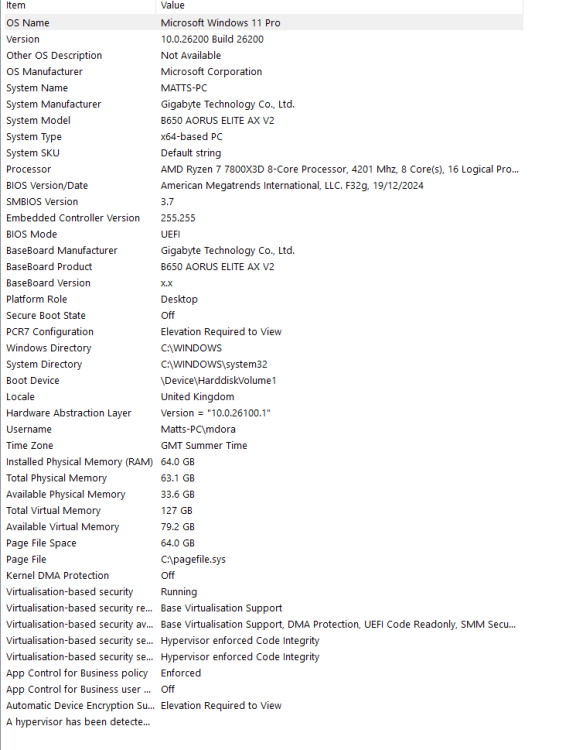
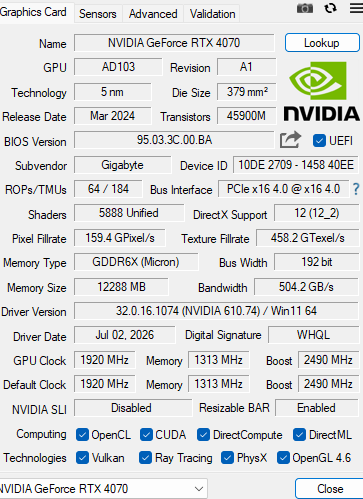
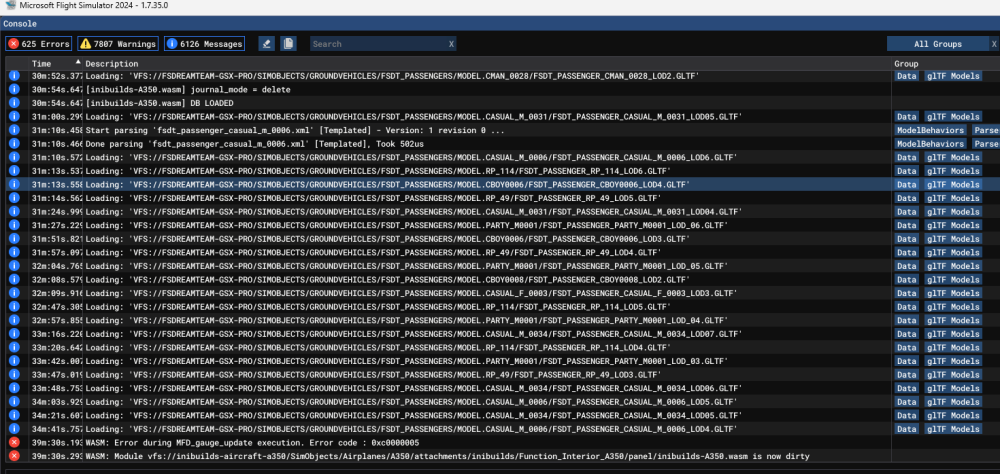
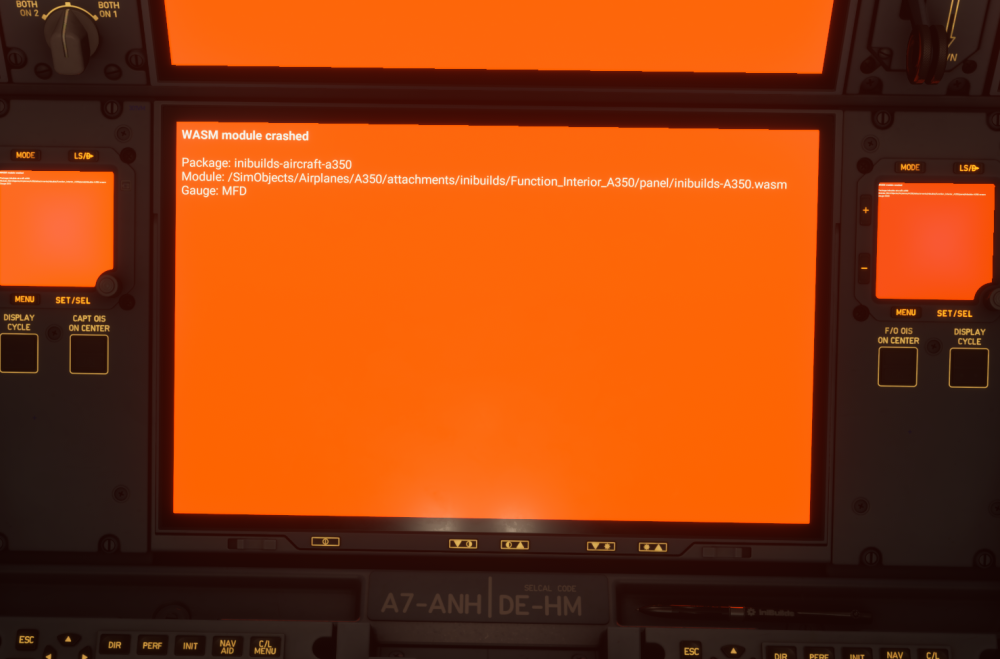
Follow on from above. 15 minutes later I tried the same flight same airport, same gate. I deleted WASM folder. Second ever WASM after many many A350 flights. This time inputting SID getting ready for departure at Inibuilds OTHH. Buying inibuilds OTHH is the only change I'm made to my system is several weeks. A350 has never failed before today after many many flights Autosave file attached this time Same details as above re specs and versions. 1784389413.bin 1784390016.bin 1784390619.bin
-
I've had the A350 since release and its always been excellent. I've never had a WASM issue until today. Aircraft: A350-100 QATAR airlines (A7-ANH) v1.2.6 Simulator: FS2024 1.7.35.0 Navdata Method: navigraph via inibuild a350 EFB OFP: attahec Using new installed scenery Inibuild Hamad Doha for the second time. parked at gate. prepping fro departure WASM Error: Orange screens. Had loaded pax, was refueling using EFB. Had finished init, flight plan, cockpit prep. Went back to update ZFWCG. bang! orange Specs: attached Autosave file: Unavailable . OTHHSBGR_PDF_1784386781.ae3443e7.pdf