




leo5now
Member
-
Joined
-
Last visited
Everything posted by leo5now
-
Helloo! So I commented in another topic in the forum how I was done with the A350 and can't be bothered to find the issue, however that was when I decided to take on it one more time but in SU5. What I found is that changing the navdata for me personally does not work, but not downloading the terrain data helped fix it. Right now, as I am typing this, I am doing a stress test on the A350. Normally it WASMS around 45 mins - 3 hrs into the flight, but it's still going for over 16hrs now since im doing SIA's longest flight JFK-SIN. I still need to test some more if SU5 actually fixes it, but I will report back if it is actually the terrain radar. Also, using charts and the ANF just works fine, and im using Navigraph as my navdata.
-
Aircraft: A350-900 Simulator: FS2024 Navdata Method: SIM DEFAULT OFP: KBOSLSZH_PDF_1766115354.pdf WASM Error: n/a Specs: Intel i7-9700, RTX3050 8G, 32GB Autosave File: 1766135472.bin
-
-
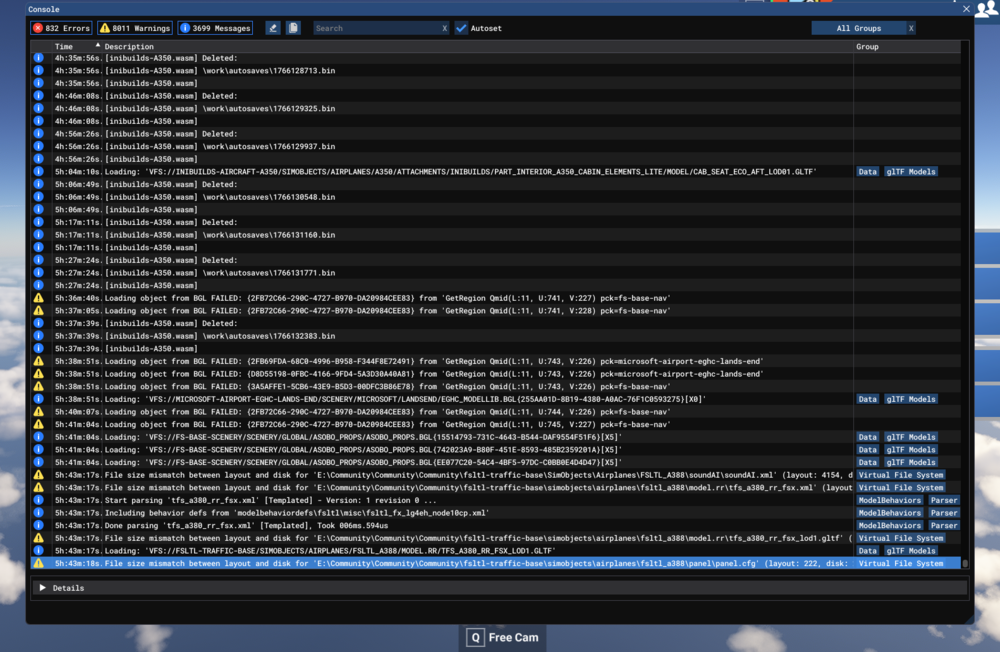
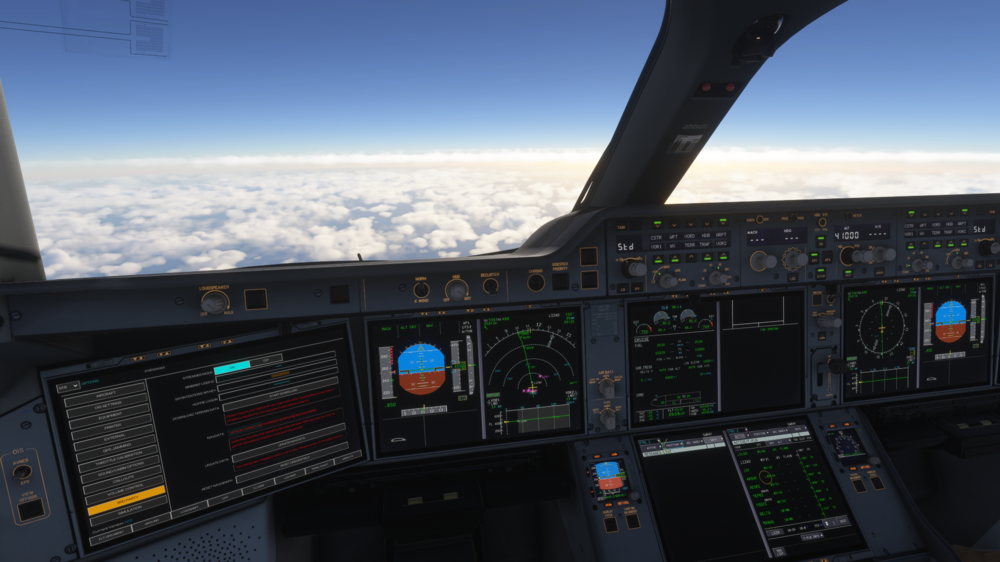
I've got a bit of an interestingone. This isn't a WASM crash, but a WASM freeze. I didn't get the red displays when it crashed; the displays just froze. When I looked up on the console, I saw this message. I'm not entirely sure if this has to do with Inibuilds planes, but I had it 5 times in a row already on the A350 in testing.


