oguerilla
Member
-
Joined
-
Last visited
-
I recently purchased the inibuilds a380 and new version of dubai omdb airport v2 from inibuilds. When I load up the plane at, the mult-jetway tool in the EFB says that "No Jetways Detected" and I cannot connect the jetways to the plane. Additionally, I tried to manually connect a jetway through the EFB, and that did not work. I then tried in GSX and that did not work either. I've tried at gates A4 and A6 and this does not work.
-
-
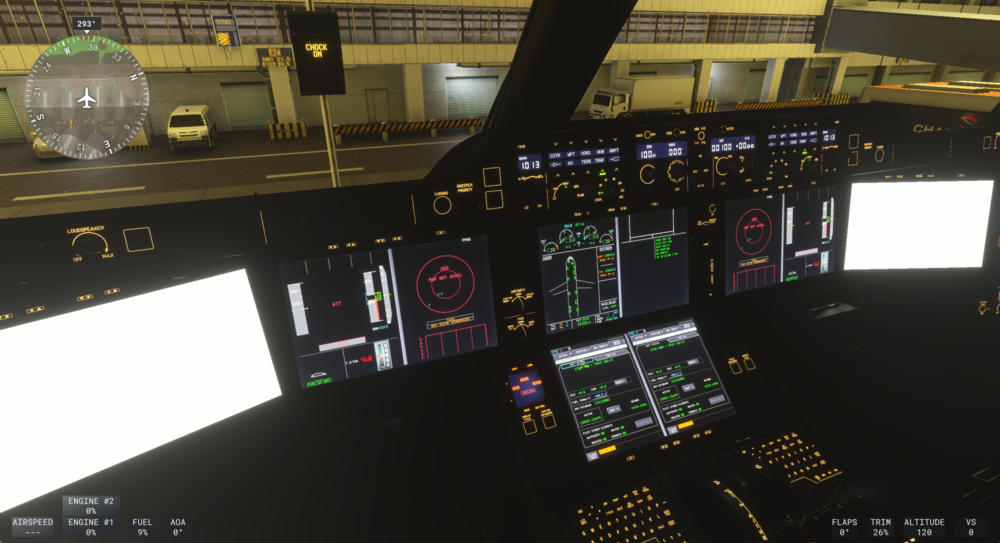
hello, thanks for responding. I tried clearing the WASM folder twice to no avail. I am on a PC. I updated all my drivers so they are current as of a week ago when I first started to trouble shoot this issue. I saw posts online where previous users had all screens turn white, and their fix was to lower the resolution. I tried that, and it did not work. I don't know what else to try.
-
Hello, I am experiencing a problem with the EFB having only white screens. The plane worked fine for months, but it stopped working when I changed from using my TV to a gaming monitor. I tried changing back to the TV at lower resolution settings, I tried changing the resolution to progressively lower settings on the gaming monitor, I tried changing the texture quality from ultra-high-medium, I tried loading in low-density areas, and I have turned all graphics card settings to minimum/default. I am no expert and am new to PC gaming, so I don't know what else to change or try. I sent a direct support request a week ago, but haven't heard anything. I saw previous posts about all screens turning white, but I didn't see anyone post about just the EFB screens turning white. Does anyone know how I can fix this? Has anyone experienced this and can give advice. Any and all help is greatly appreciated Omar Hernandez