Skip to content
View in the app

A better way to browse. Learn more.

iniBuilds Forum

A full-screen app on your home screen with push notifications, badges and more.

To install this app on iOS and iPadOS
  1. Tap the Share icon in Safari
  2. Scroll the menu and tap Add to Home Screen.
  3. Tap Add in the top-right corner.
To install this app on Android
  1. Tap the 3-dot menu (⋮) in the top-right corner of the browser.
  2. Tap Add to Home screen or Install app.
  3. Confirm by tapping Install.

Gamefreak

Member
  • Joined

  • Last visited

Everything posted by Gamefreak

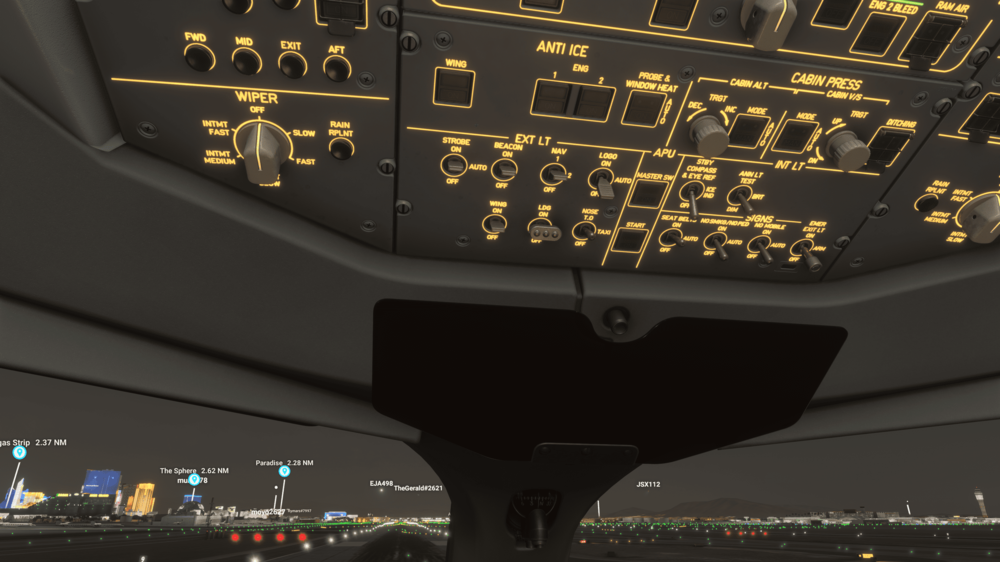
  1. Marketplace updated today to new version and I noticed not all the exterior lights are working as intended just like it was last in 1.2.1. This time only in the 900 variant. The 1000 and the 900-ulr are all completely fine and working. The lights that only works in the 900 is the taxi light, strobe, beacon, and wing. The ones that don’t work anymore are Logo, landing lights, runway turnoff, and nav lights all are off despite being in the on position. 1000 and ulr being unaffected
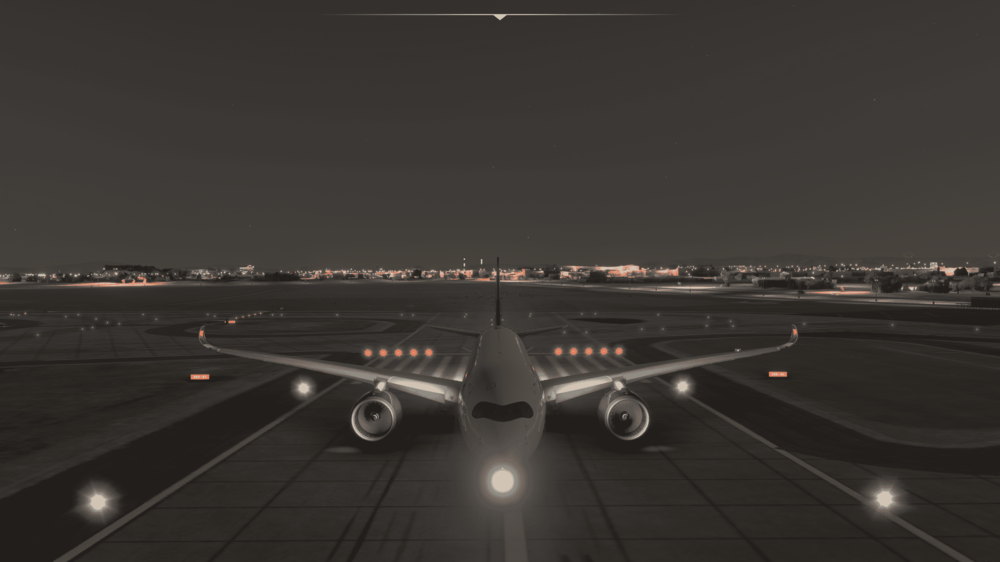
  2. Yep actually works which is surprising to me why that would be the case but helps as a workaround in the meantime. I do hope they do fix it soon for the people who don’t have that add on. I haven’t had a problem with the SIDS not working.
  3. The only workaround that I found is to have zinertek aircraft realistic lights installed and that fixes the functionality of the interior and exterior lights. Unfortunately this is the only way I’ve found it work since it’s a paid add on you already have or need to get. Least there’s a way until an official fix is published
  4. Hope this helps anyone not wanting to park the a350 back into the hanger until it’s fixed. I did it myself and it works flawless
  5. As a work around for this issue someone on the discord recommended to have zinerteck aircraft realistic lights installed it fixes both the exterior and the interior lighting. A great work around to restore the lighting until an official patch is made on the Xbox platform

Account

Navigation

Configure browser push notifications

Chrome (Android)
  1. Tap the lock icon next to the address bar.
  2. Tap Permissions → Notifications.
  3. Adjust your preference.
Chrome (Desktop)
  1. Click the padlock icon in the address bar.
  2. Select Site settings.
  3. Find Notifications and adjust your preference.