AverageCrasher
Member
-
Joined
-
Last visited
-
I don't believe so, it happens on most if not all flights I operate.
-
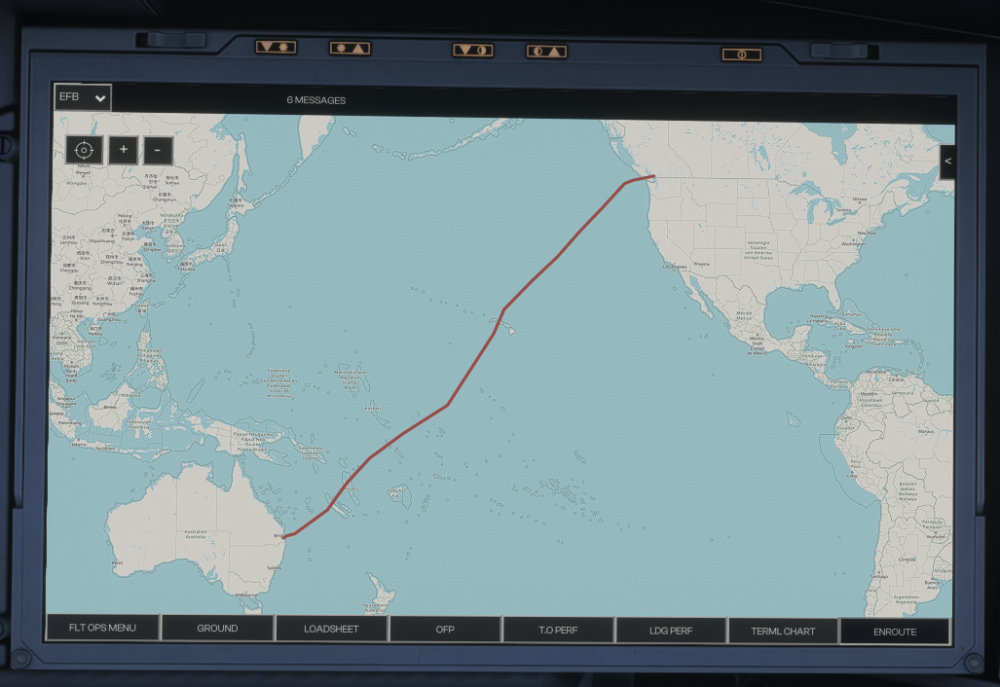
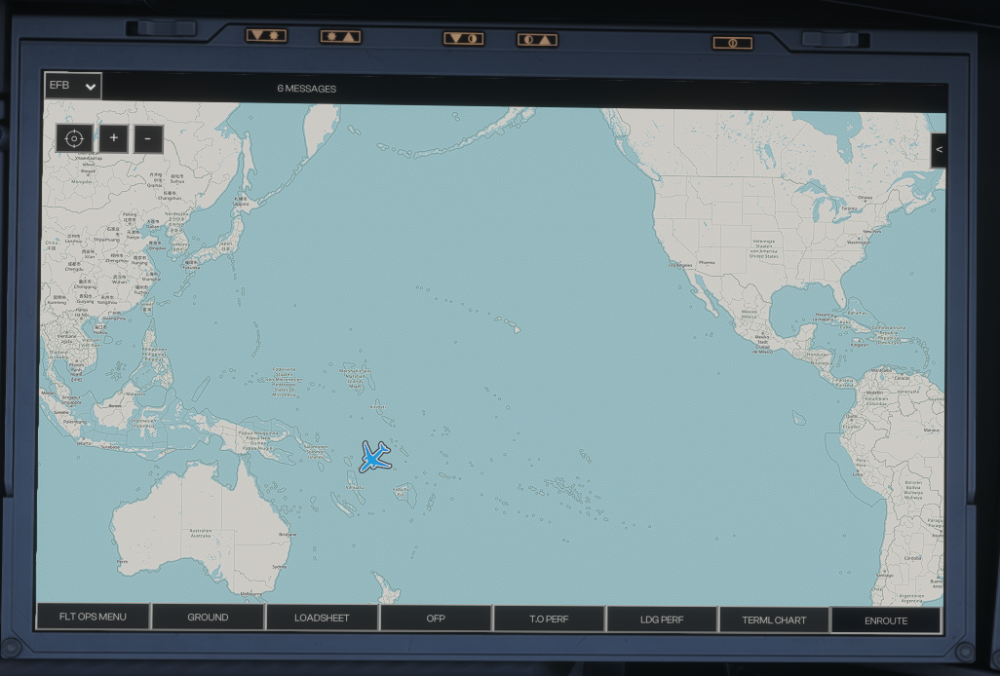
As you might know, the Enroute tab in the OIS is an infinite scrollable map of the world. For some reason, my blue aircraft location indicated seems to randomly move to the next world over to the right in the middle of flights for no apparent reason. In the first screenshot, you can see that the route shows up correctly, but the aircraft location indicator is nowhere to be seen. The second screenshot shows that after scrolling to the right one world, the aircraft shows up again in the place it's supposed to be, but in the wrong world.
-
I believe some liveries may cause this issue
-
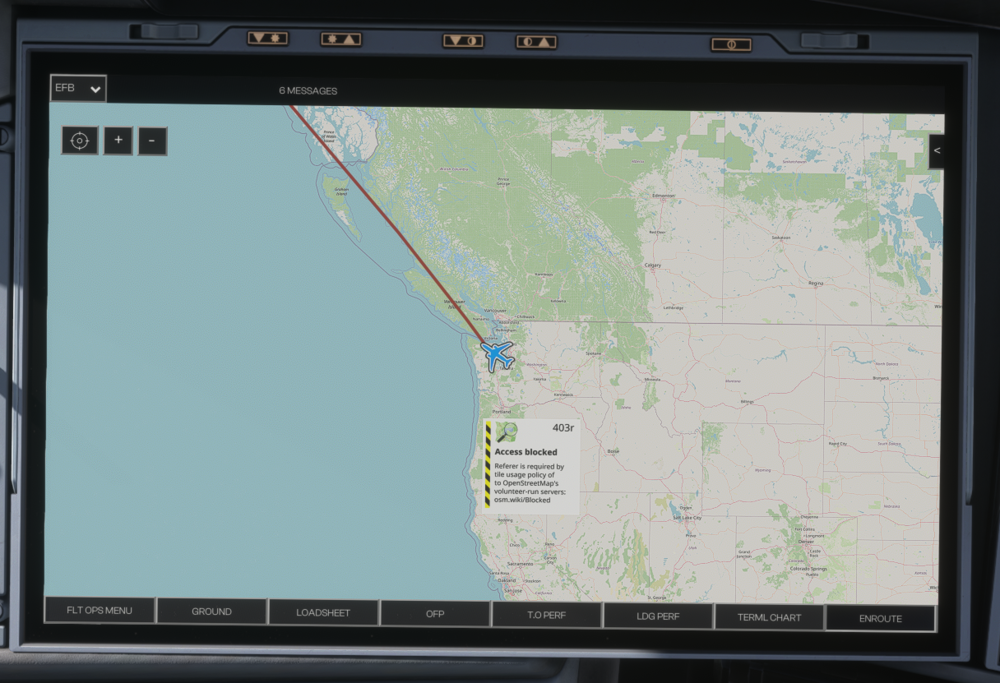
I was flying from Seattle to Anchorage, but when I checked the Enroute tab for the map, the map had a popup that said, "access blocked". It has since been in every flight I have flown.