alexaquino
Member
-
Joined
-
Last visited
Everything posted by alexaquino
-
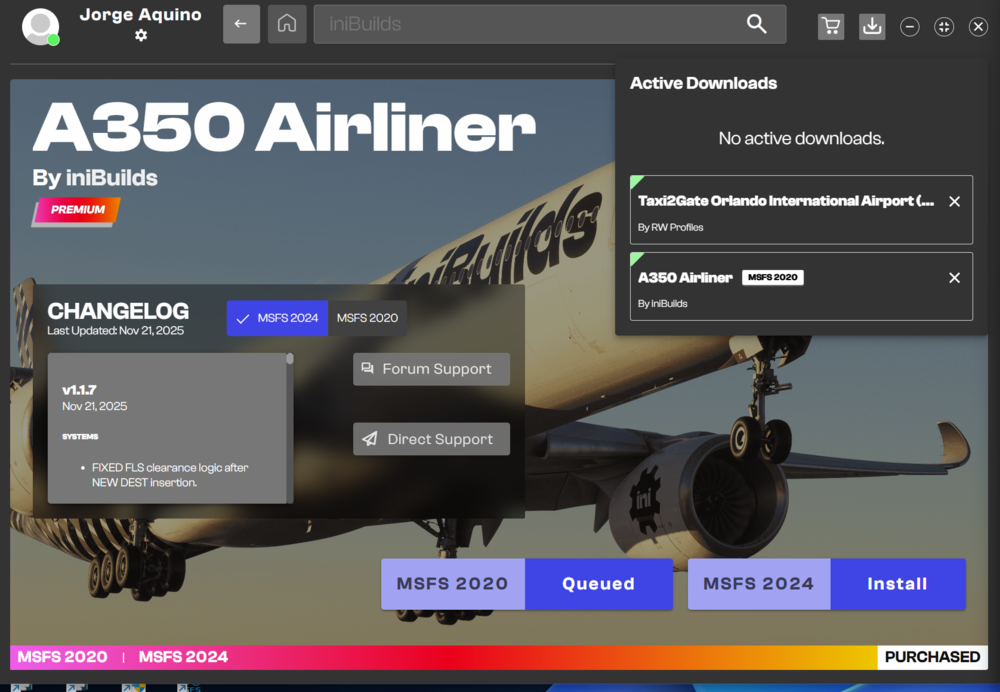
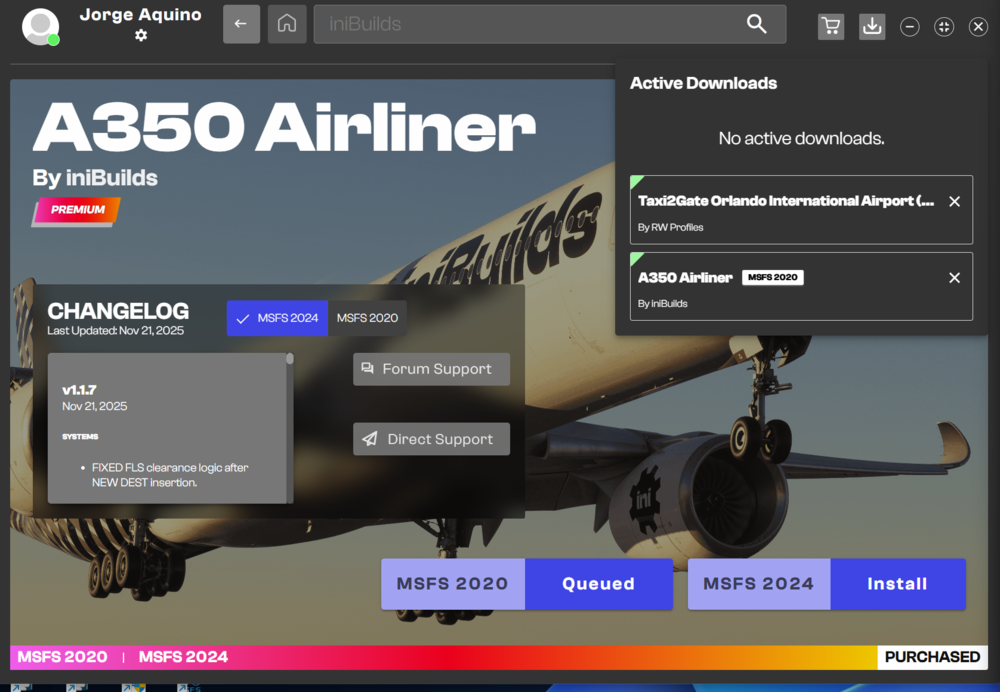
Hello, I purchased the A350 but I’m unable to download it. When I try to start the download, it stays in the “queued” state indefinitely and never proceeds to actually start downloading. No error message appears — it simply doesn’t move forward. Could you please check my order and help me resolve this issue? I can provide the order ID, account email, or any other information you may need. Thank you for your assistance.
-
I purchased the A350 but I’m unable to download it. When I try to start the download, it stays in the “queued” state indefinitely and never proceeds to actually start downloading. No error message appears — it simply doesn’t move forward. Could you please check my order and help me resolve this issue? I can provide the order ID, account email, or any other information you may need.