




Courtial
Member
-
Joined
-
Last visited
-
Many thanks ool & BoeingSpeedbird, all clear now! The message was a loadsheet, so it looks strange : to find it in the ATC COM... & that it triggers the "company msg" message Looks like to minor bugs to me
-
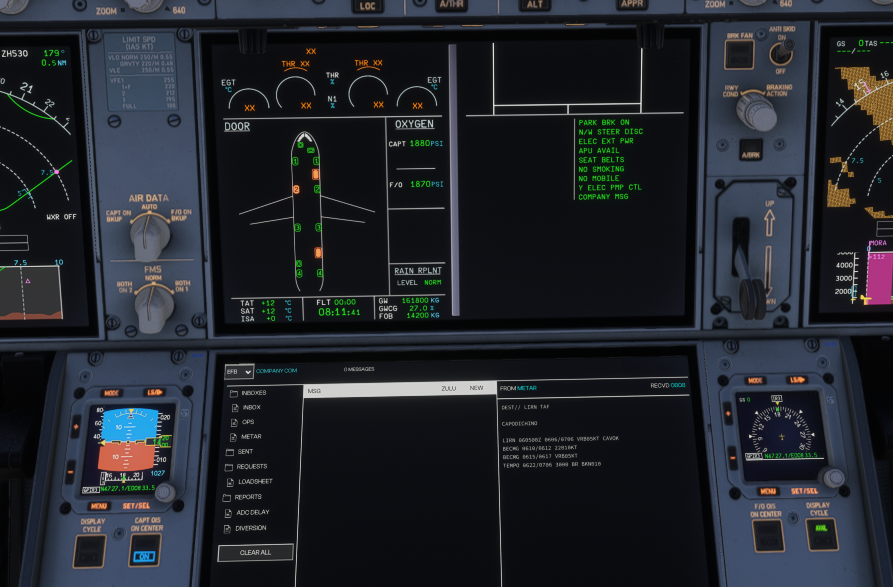
Ok, I was not looking in the ATC COM part :-) I even didn't know that messages could be there: I was looking in the OIS... Many thanks!! Still related to messages: how is the "MailBox" display working (the part above "PARK BRK ON" on my screenshot)? Is it for CPDLC? Thanks again!
-
I also have the problem that the "Company Message" notification does not disappear as expected. The message stays on the screen for the full flight.
-
Thanks, I think the pb was my mouse 😕 another question, linked to this one: on my default set up, the knob push is right click and pull is « center click » (with the scroll) on the mouse is there a way to change this?
-
Strange. I tried several time push or pull. I will retry what do you mean by a legacy system interaction ?
-
Hi I am running the A350 (latest update) with msfs2024 For one week, I am able to switch from QNH to STD by pushing the knob, but then it is no more possible to switch it back to QNH (it remains in STD) any clue? Thanks
