




achelous
Member
-
Joined
-
Last visited
-
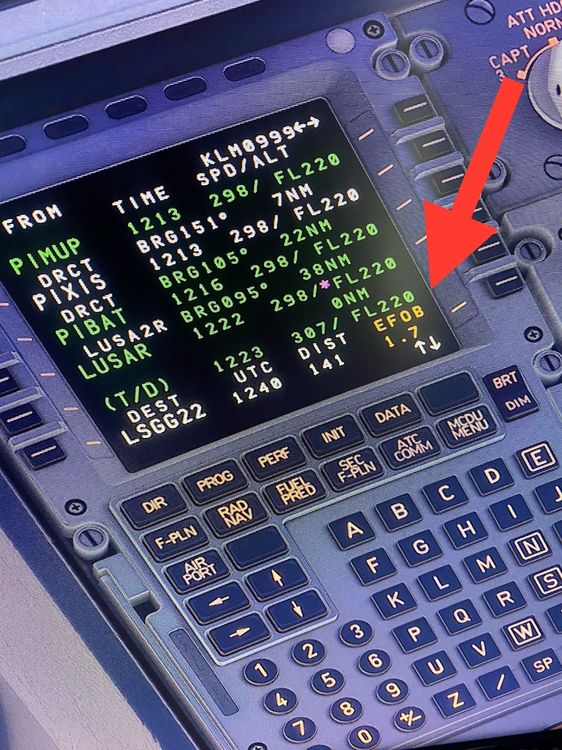
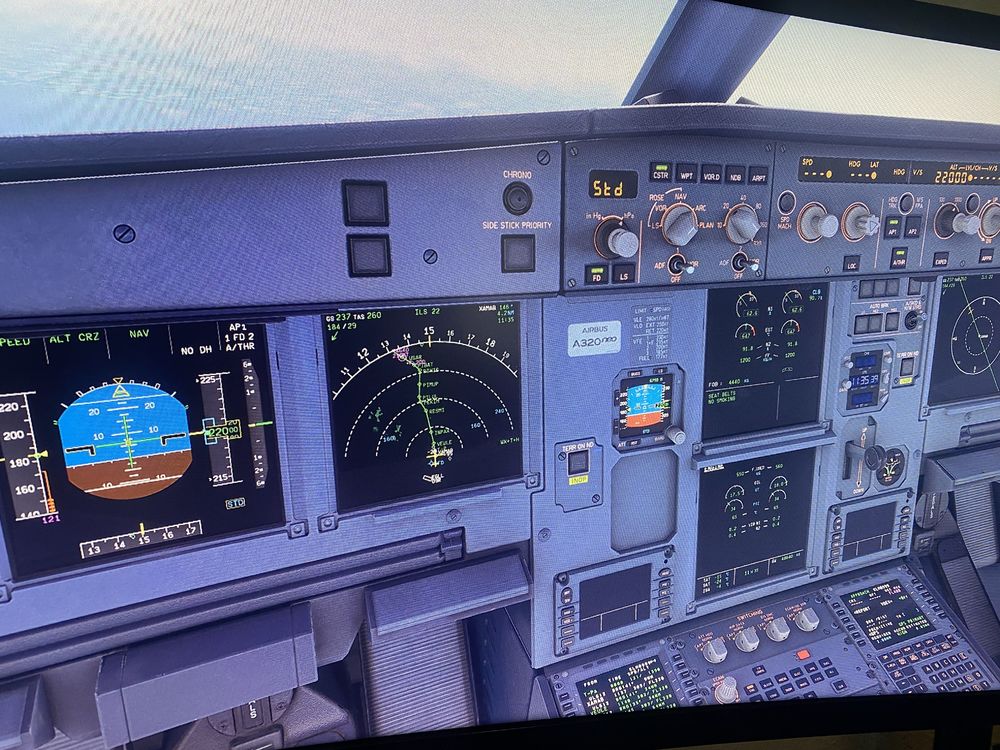
Could someone please help me with an issue on the new A320neo (v2). I can't seem to get the descent arrow to appear as I want to plan descent. The MCDU is set according to the iniBuilds manual. I have entered necessary performance data and weight, ZFW, block into FMGS based on EFB. In the flight plan, I do see (T/C) and DECEL points but no down arrow. NAV appears on FMA and if I push managed altitude, the speed drastically falls and targets 120 while green donut stays aligned... EFOB message on MCDU. Note: Xbox Series S, no add ons, console power-cycle performed, reduced traffic in setting done, memory space is managed.
-
Hey I'm stuck with the same issue. I read that reducing sim traffic (sea life, ground aircraft, airport life) will help, and it did help in my case for a while. Maybe try on your system and see if that works. But now I have the issue again. I feel ya
-
Could somebody please help me with this ongoing issue: On random moments, the displays on a320 v2 all turn blank. I recently saw a post saying I need to reduce sim traffic and I did this, but the issue has continued... Are there any other suggestions to prevent this from happening? I would very much appreciate it. It's just incredibly frustrating especially when it happens 10 miles from the runway! Notes: I'm on Xbox Series S, all sim traffic have been reduced, no add ons, updates for all my systems are completed.

